CenterTest Data StudioCenterTest Data StudioCenterTest Data StudioCenterTest Data StudioCenterTest Data StudioCenterTest Data Studio

CenterTest Data Studio makes managing, navigating, expanding, and validating test data much easier, so the same test covers more cases through new or shared data.

Get Started

Expand Test Coverage
Without Code

CenterTest is designed to maximize automated test coverage by leveraging adaptive scenarios that are driven by shared test data.

Data objects, like Person (DOB, age, DL#, etc.) and Vehicle (VIN, Year, Make, Model, etc.), are shared across dozens of scenarios and hundreds of tests.

CenterTest Data Studio makes it easy for your development and business teams to understand the data driving your tests, and to expand test coverage without ever touching a line of code.

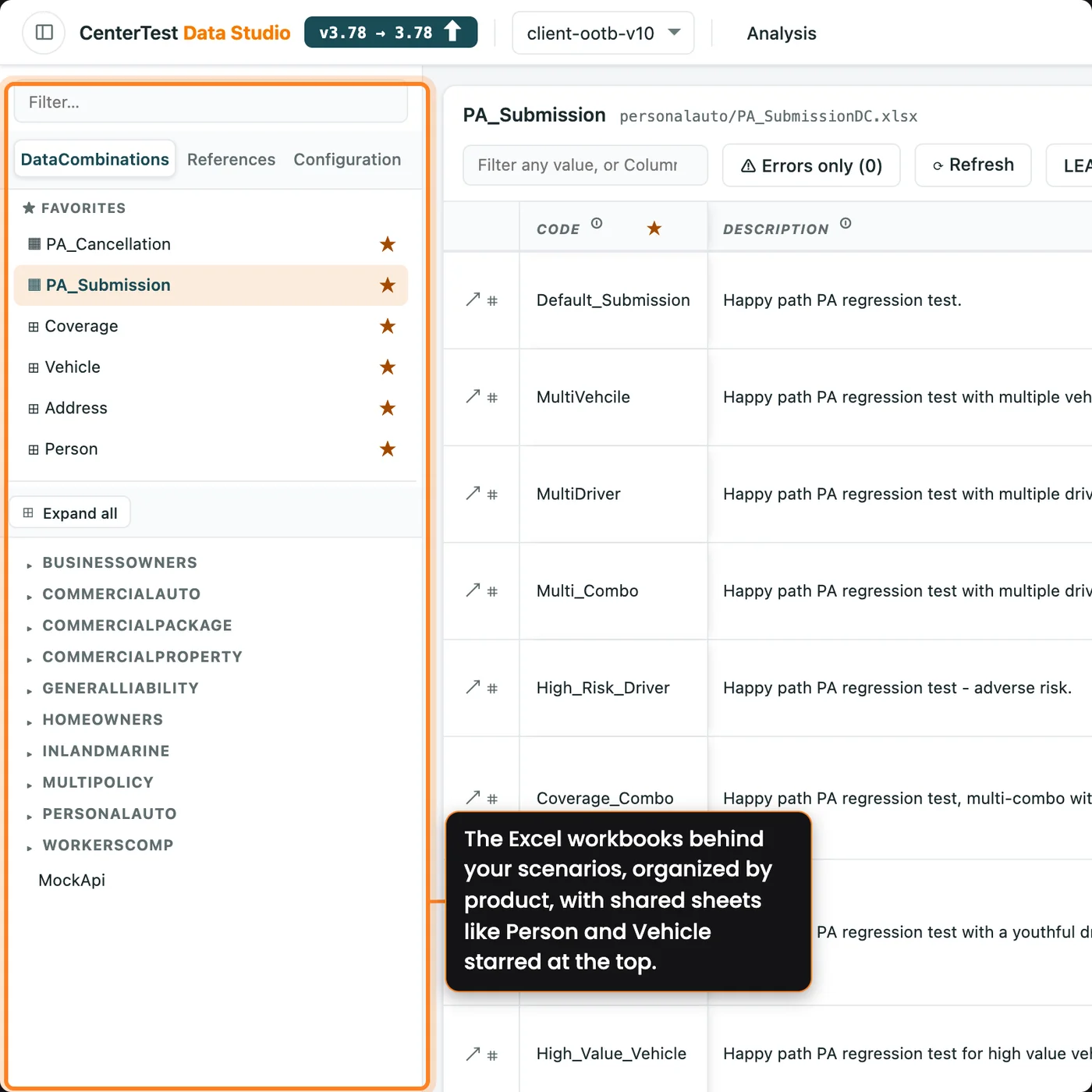
CenterTest Data Studio open on the personal auto submission sheet from its Excel workbook, with products and scenarios in the sidebar, the Person, Vehicle, Address, and Coverage sheets starred.

One Scenario,
Many Tests

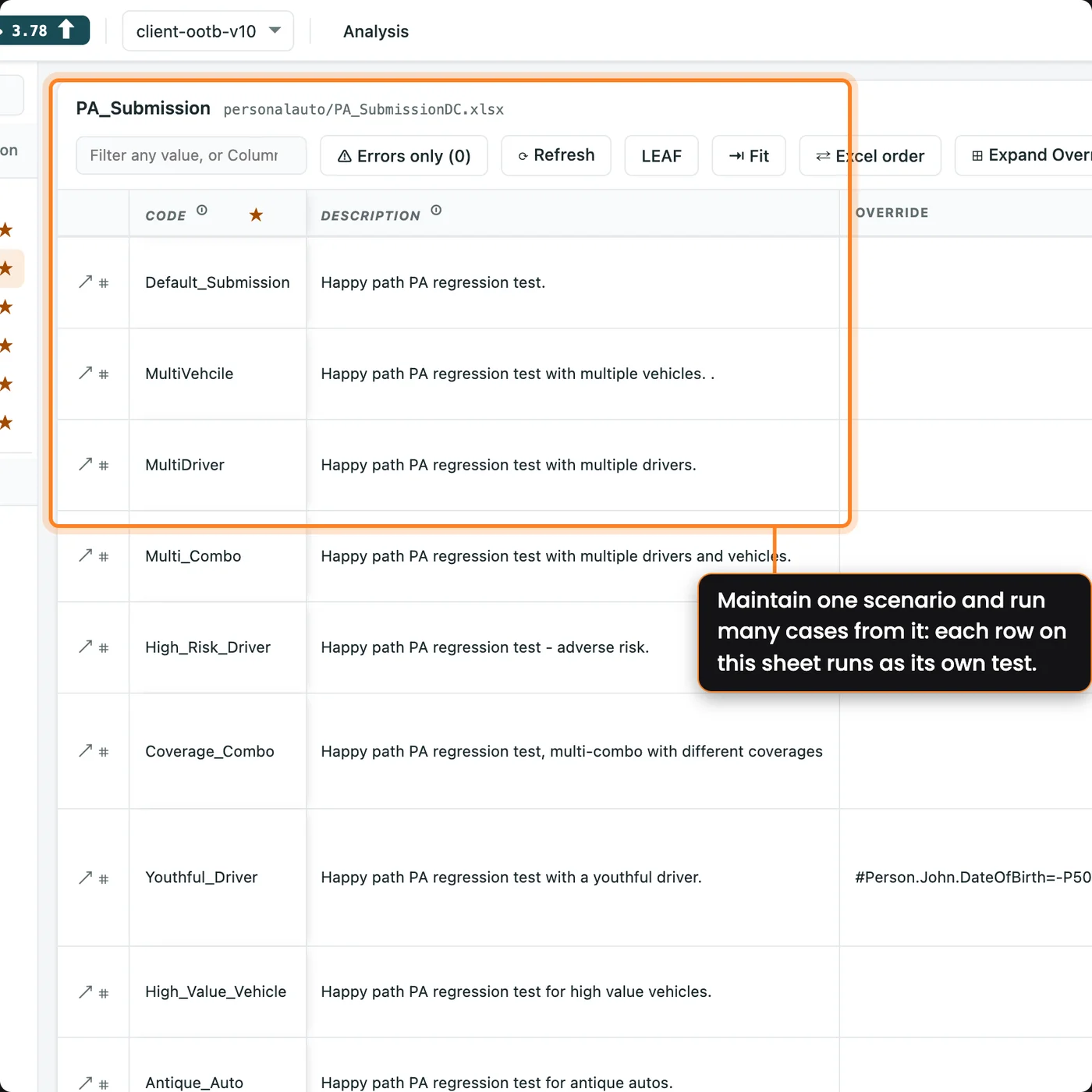
The personal auto submission sheet in CenterTest Data Studio, with the default submission, multi-vehicle, and multi-driver rows marked as separate cases of one scenario.

One Scenario,
Many Tests

Maintain and expand a single, adaptive scenario that can satisfy many workflow variables. Expand test coverage by adding new data to that scenario's spreadsheet.

A CenterTest scenario is written once and adapts to the inputs each row gives it. On the personal auto submission sheet, a default submission, a multi-vehicle policy, and a multi-driver policy all run through the same scenario, one row each.

The personal auto submission sheet in CenterTest Data Studio, with the default submission, multi-vehicle, and multi-driver rows marked as separate cases of one scenario.

One Scenario
per Product

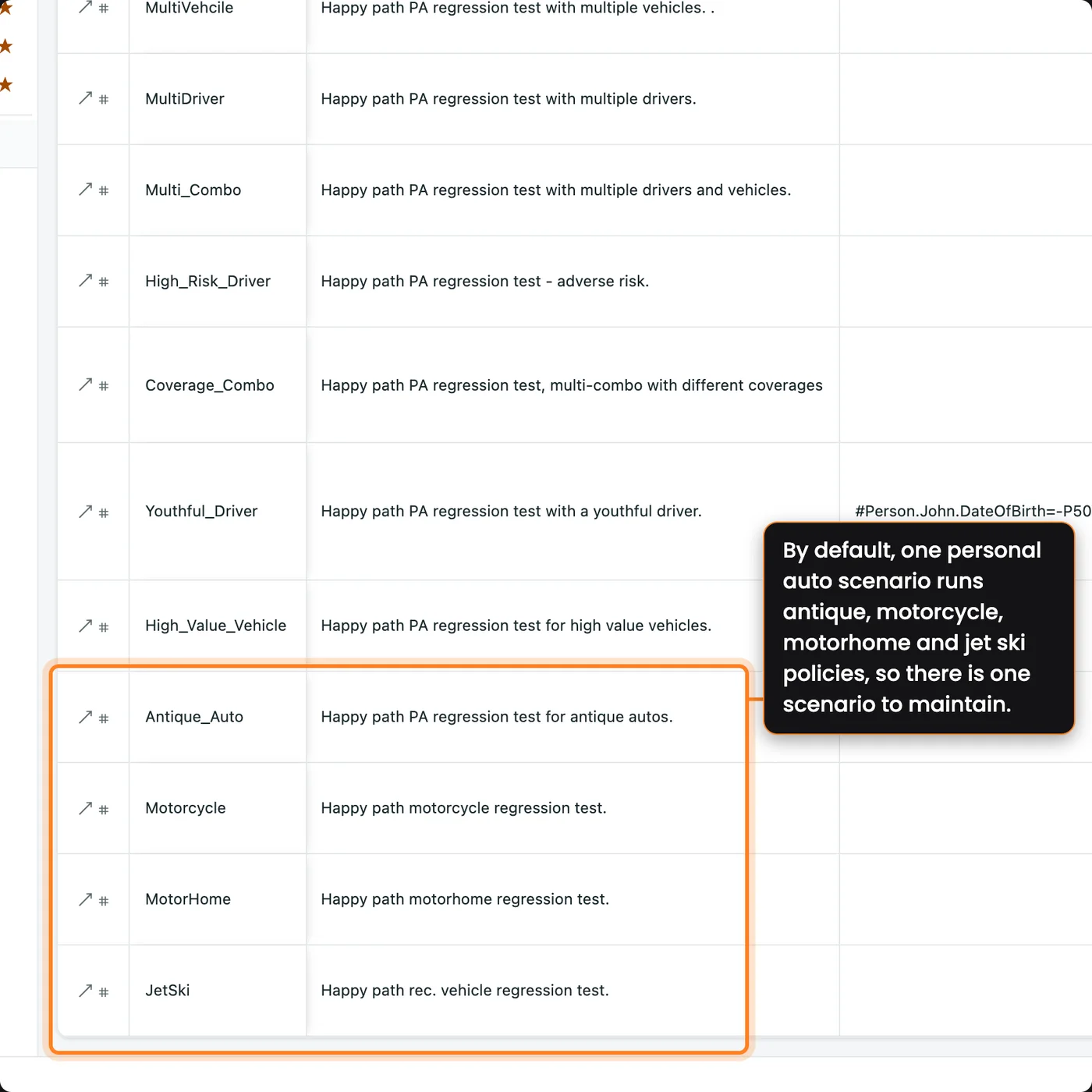
Personal auto, motorcycle, motorhome, ATV, and watercraft all run through the same submission scenario. Similar lines of business with similar flows can be consolidated to avoid code duplication.

CenterTest's default scenarios are organized by product. One personal auto submission scenario covers every line of business you sell through that product, each as its own row, and you can organize scenarios any way your implementation needs.

Rows for motorcycle, motorhome, antique, and jet ski policies running through the same personal auto submission scenario in CenterTest Data Studio.

A Head Start
for Guidewire Testing

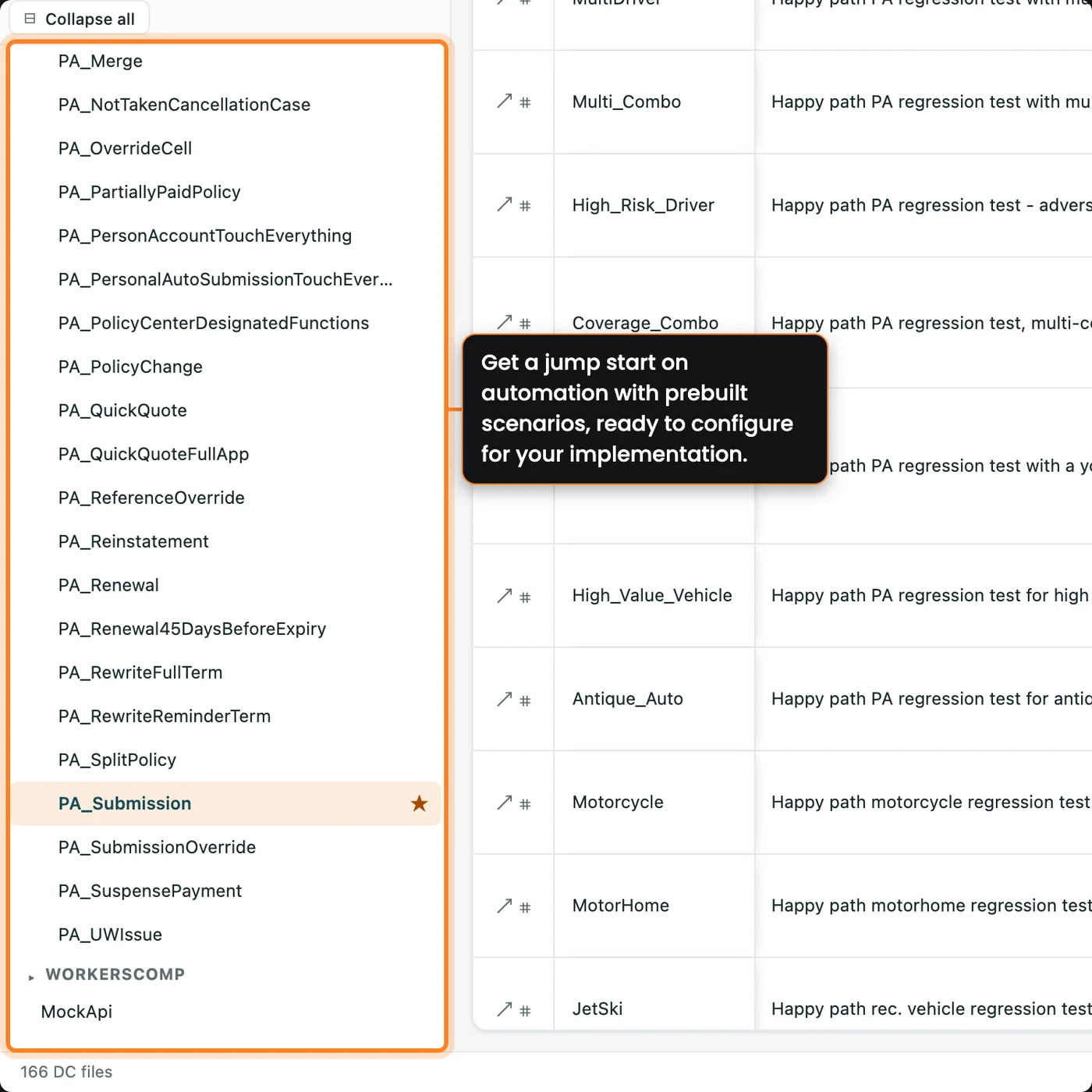
The personal auto group expanded in the CenterTest Data Studio sidebar, listing the out-of-the-box personal auto scenario sheets.

A Head Start
for Guidewire Testing

Get your team up to speed on the framework, and give them a head start with prebuilt InsuranceSuite scenarios.

Then adapt those scenarios to your implementation based on your automation priorities. Your team configures the scenarios and their inputs to match your implementation, starting from a design already built to work with Guidewire.

That head start makes building your first scenarios much faster. CenterTest Data Studio lists all the prebuilt scenarios for all lines of business in its sidebar, each one ready to open and adapt.

The personal auto group expanded in the CenterTest Data Studio sidebar, listing the out-of-the-box personal auto scenario sheets.

Define It Once,
Use It Everywhere

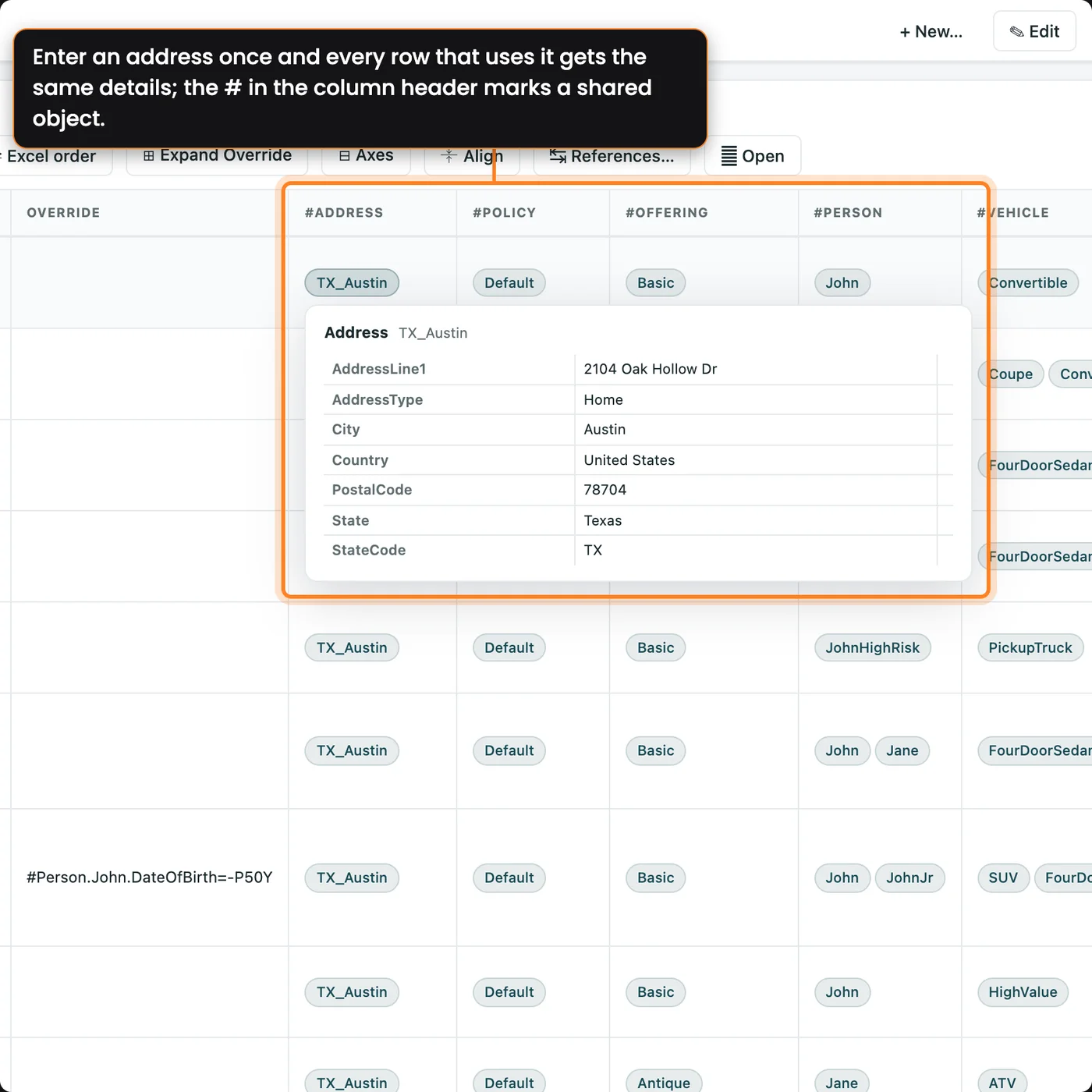
Maintain an address in one place, such as TX_Austin, and every row that points to it gets the same complete set of fields.

In CenterTest Data Studio, a column with a # header points to a shared object. The default submission uses one called TX_Austin for the account address, the policy location, and the garaging address.

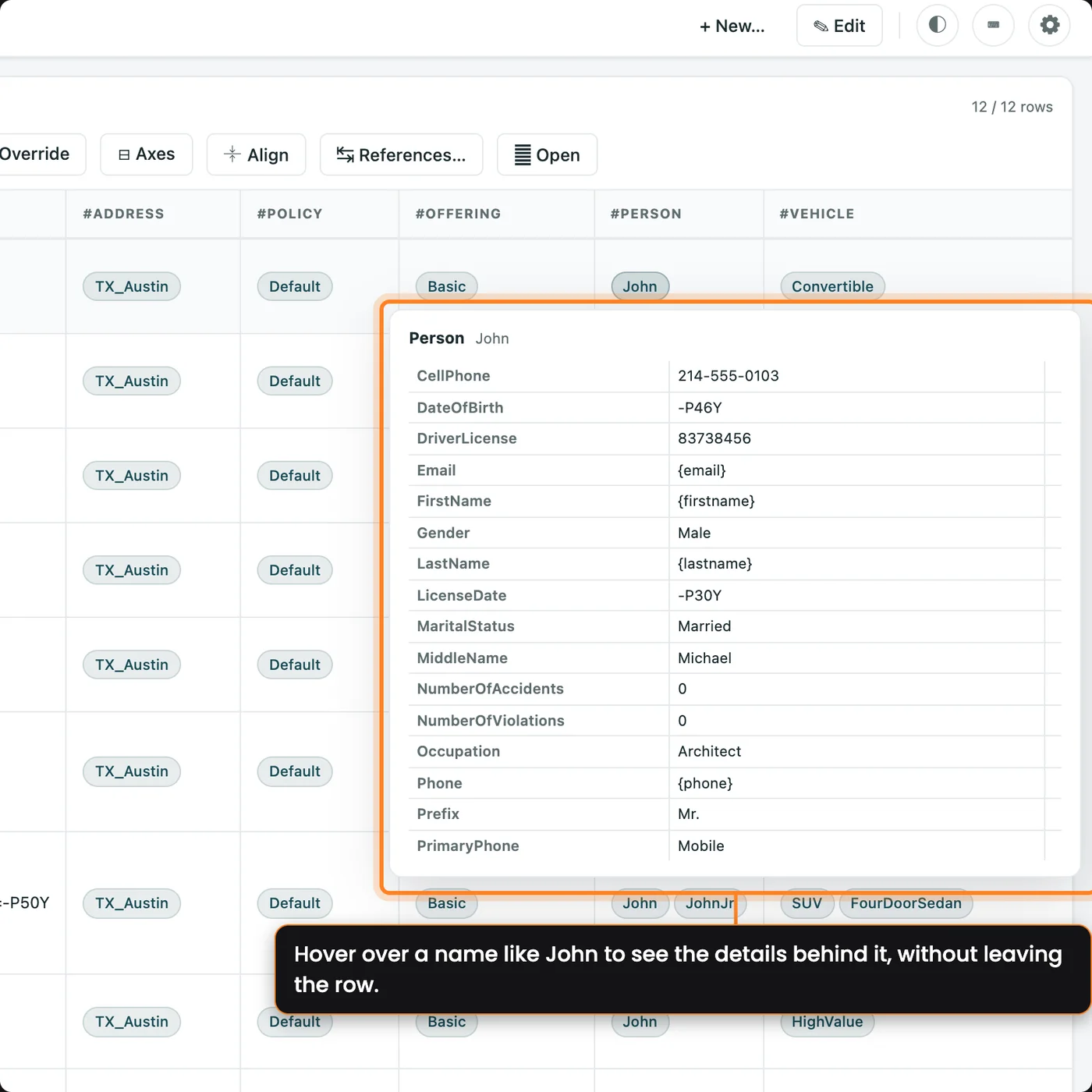
Hover over the name to see its fields. People, vehicles, and coverages work the same way, and a scenario can use different addresses for the account, garaging, and mailing when a case calls for it.

The shared address column in CenterTest Data Studio, marked with a #, showing the TX_Austin object and its hover card listing the address fields.

Join Any Two
Data Objects

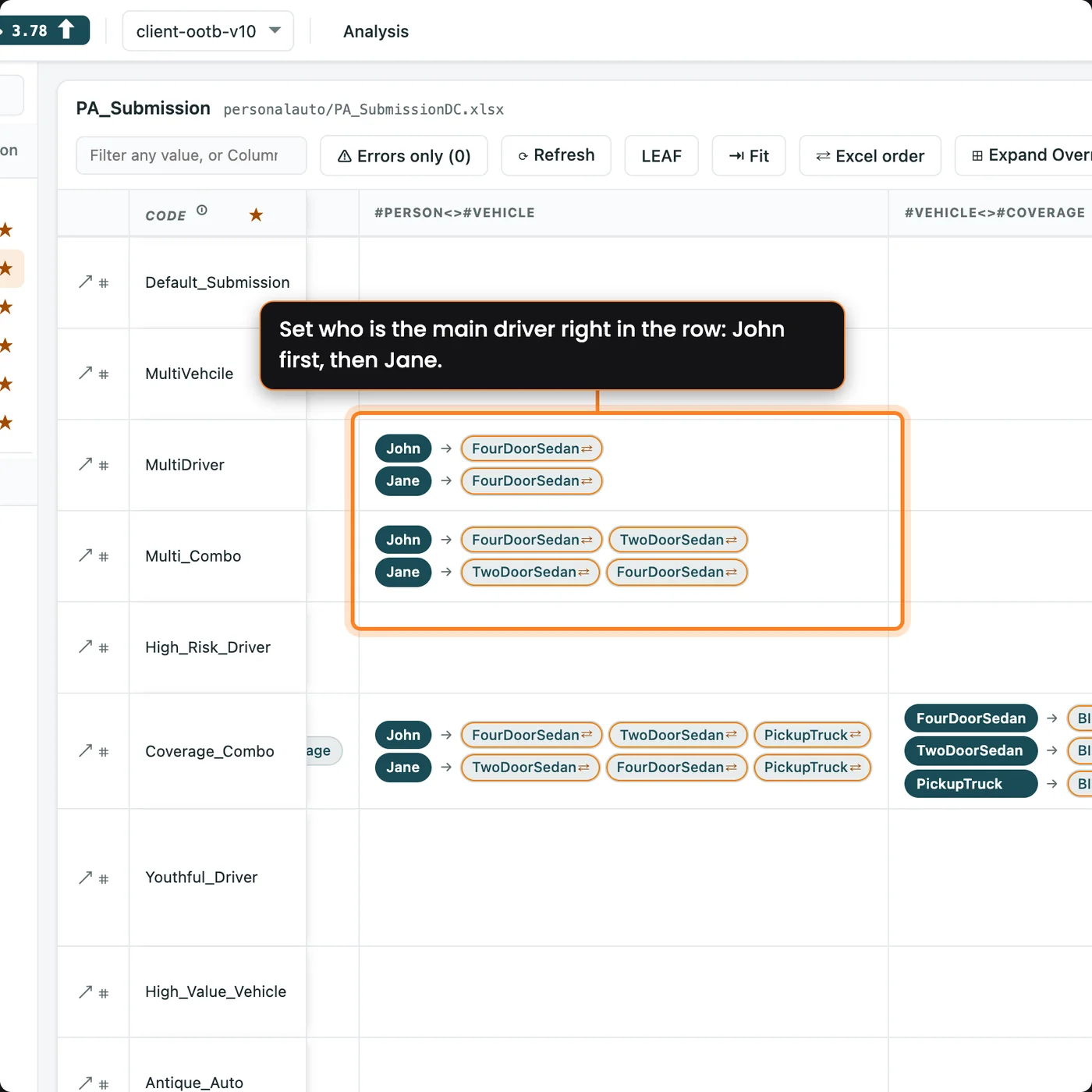
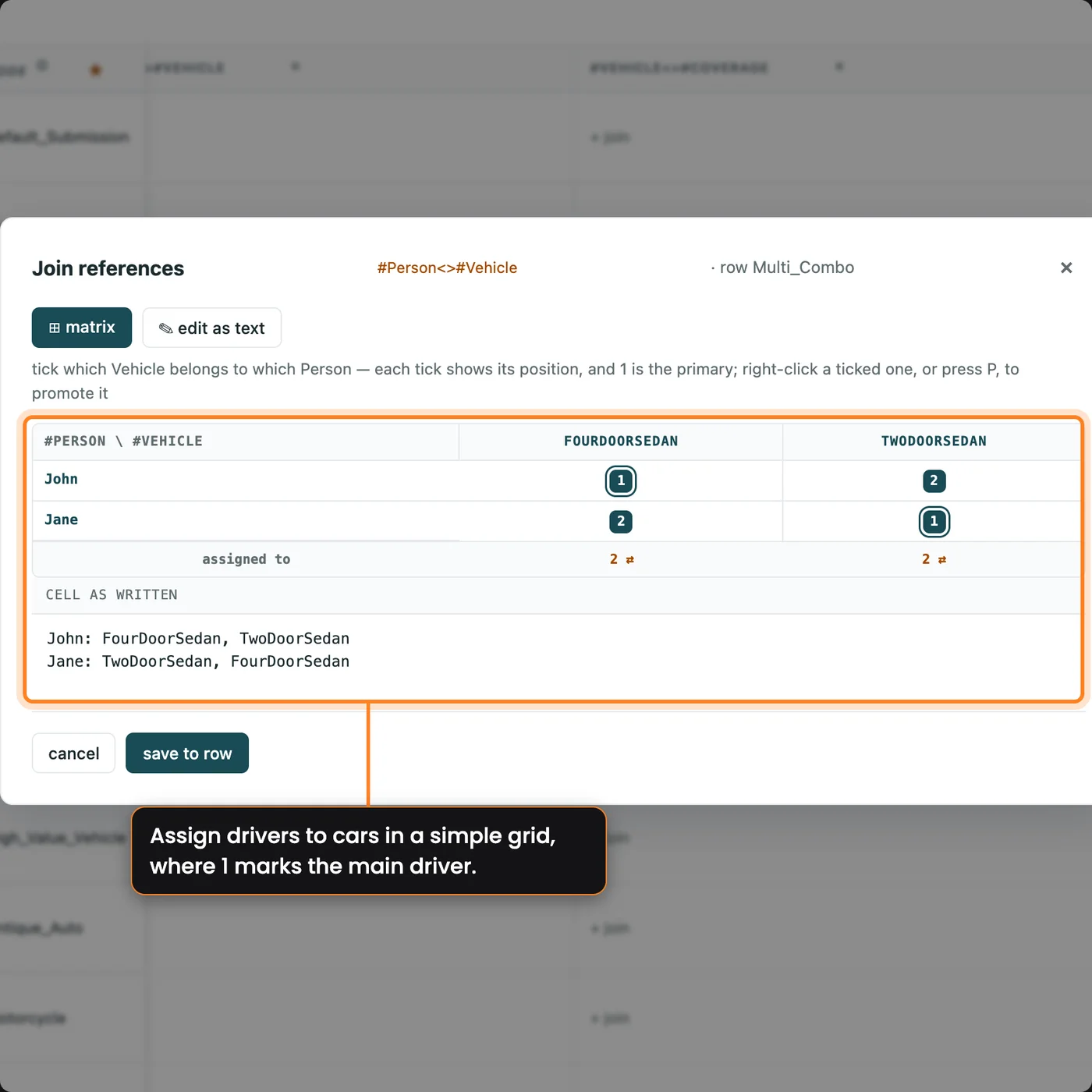
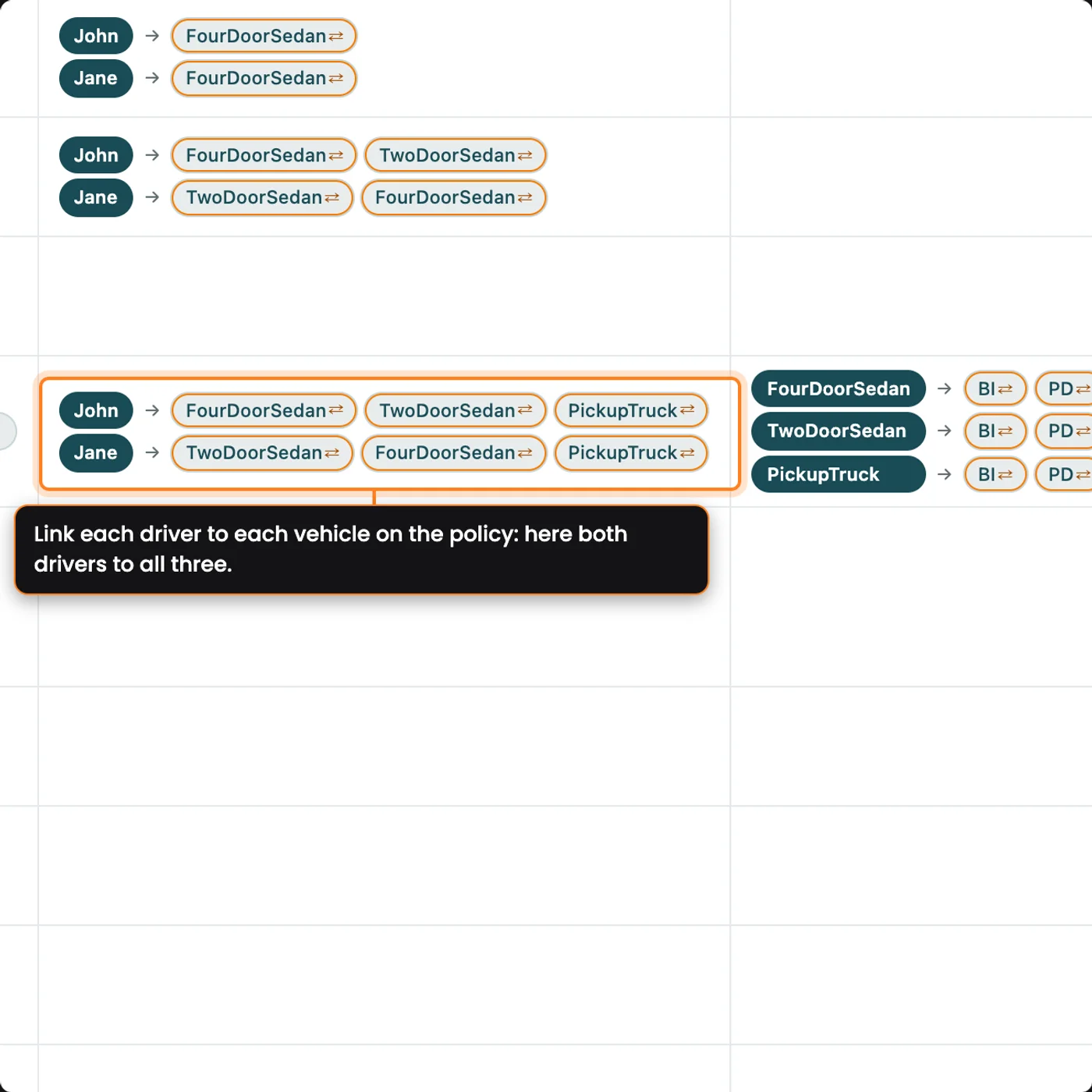
Swipe set in CenterTest Data Studio: the person-to-vehicle join column with John primary and Jane secondary; the join matrix where 1 marks the primary driver; both drivers joined to three vehicles; and coverages joined vehicle by vehicle, with comprehensive and collision left off the pickup.
The join editor for the multi-combo row, with a driver-by-vehicle matrix of positions.
The person-to-vehicle join on the coverage combo row: John and Jane joined to all three vehicles.
The vehicle-to-coverage join on the coverage combo row, with each vehicle followed by its own coverages.

Join Any Two
Data Objects

Join any two shared data objects and define how they relate: drivers to vehicles, coverages to vehicles, claims to properties, or coverages to locations on a commercial or homeowners risk.

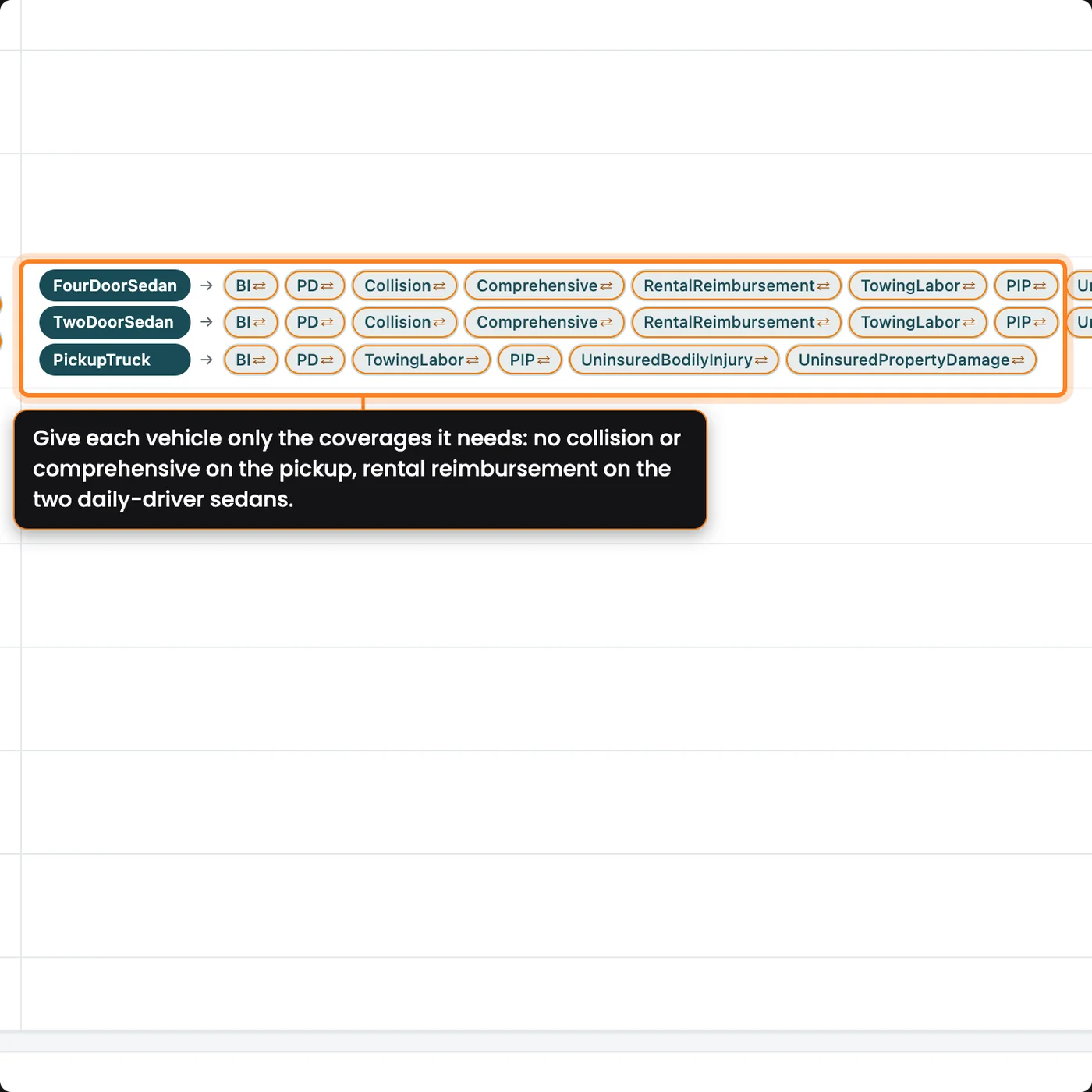
Personal auto is the worked example. In the multi-driver case, John and Jane share one vehicle, so the person-to-vehicle join sets John as primary and Jane as secondary. In the coverage combo case they share three vehicles: the pickup gets no comprehensive or collision, rental reimbursement goes on the two sedans they drive every day, and towing goes on every vehicle.

Leave a join empty and every coverage applies to every vehicle listed. CenterTest Data Studio shows each relationship in the row, and you configure the joins to fit your implementation and underwriting rules.

Swipe set in CenterTest Data Studio: the person-to-vehicle join column with John primary and Jane secondary; the join matrix where 1 marks the primary driver; both drivers joined to three vehicles; and coverages joined vehicle by vehicle, with comprehensive and collision left off the pickup.

Dates That
Stay Right

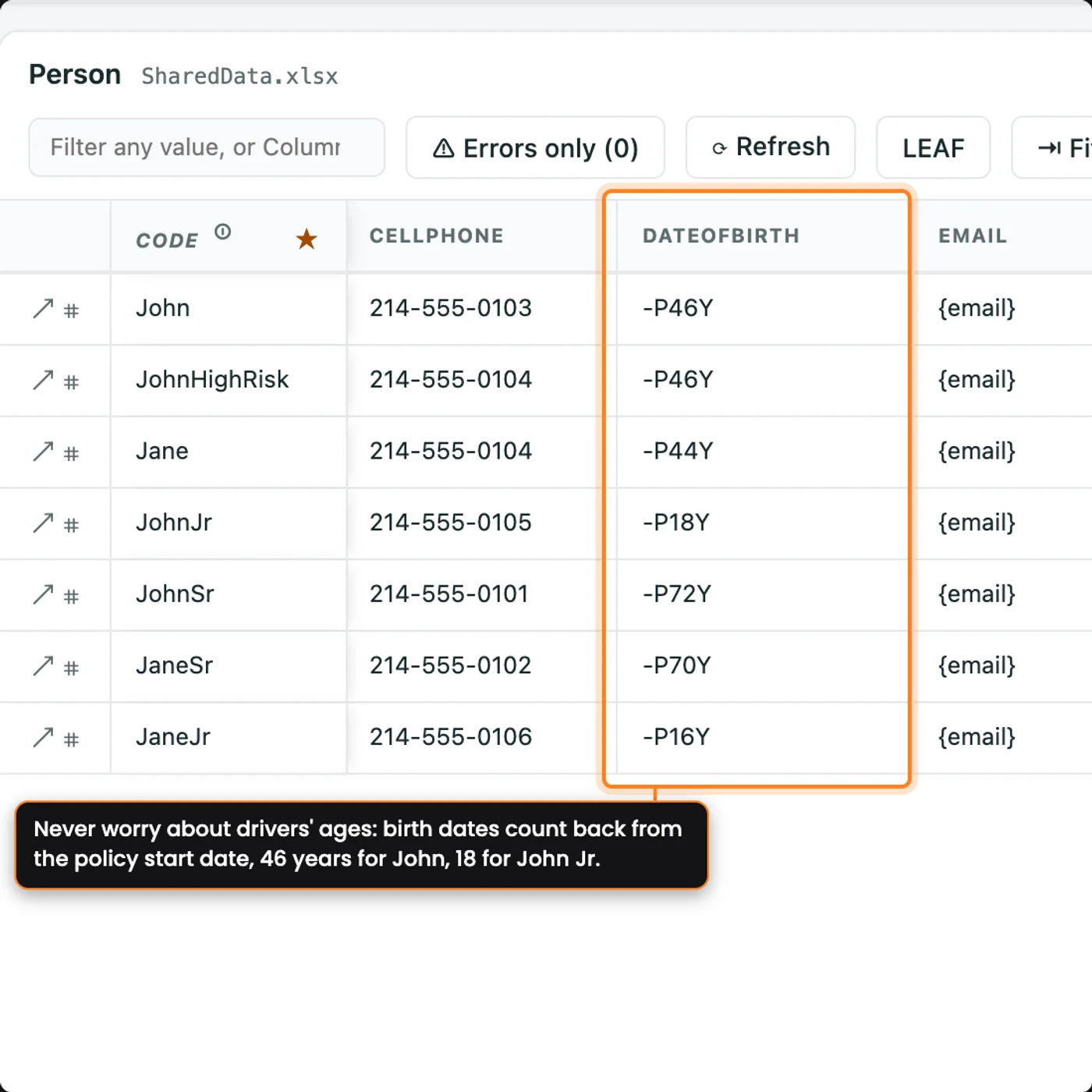
Write any date as an offset from the policy effective date, plus or minus years, months, and days in any combination, and it stays right on every run.

Birthdays are the example. On the Person sheet, John's date of birth is -P46Y, the policy effective date minus 46 years, and he was licensed at -P30Y. John Jr. is -P18Y and licensed at -P2Y, so he got his license at 16.

The same offsets work for cancellation dates, policy effective dates, renewal dates, or anywhere else a date is needed, so you never have to worry about correct ages and dates.

The Person sheet in CenterTest Data Studio with dates of birth written as offsets from the policy effective date: John -P46Y, John Jr. -P18Y.

Unique Insureds,
Every Run

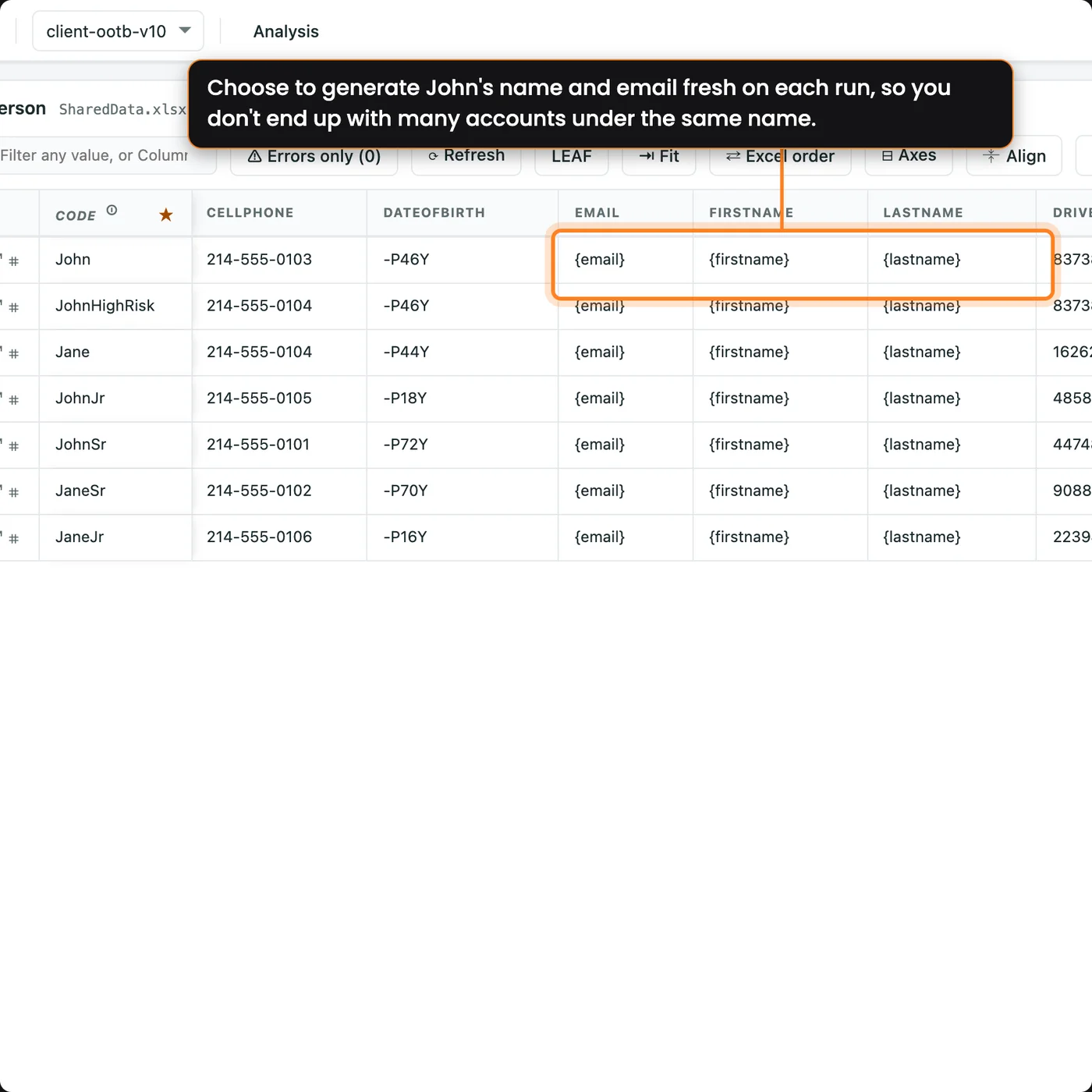
John's record in CenterTest Data Studio, with the first name, last name, and email fields marked to generate at runtime.

Unique Insureds,
Every Run

Choose which fields generate fresh values at runtime, so each run creates a unique insured and you stop piling up accounts under one name.

The shared record is still called John, so everyone knows he is the default individual insured. In CenterTest Data Studio, his first name, last name, email, and phone number are set to generate at runtime. Generating is optional, field by field: any field can stay fixed instead.

You can set other fields the same way, such as a driver's license number, a cell phone number, or an occupation, depending on what your implementation needs to cover.

John's record in CenterTest Data Studio, with the first name, last name, and email fields marked to generate at runtime.

The Details,
One Hover Away

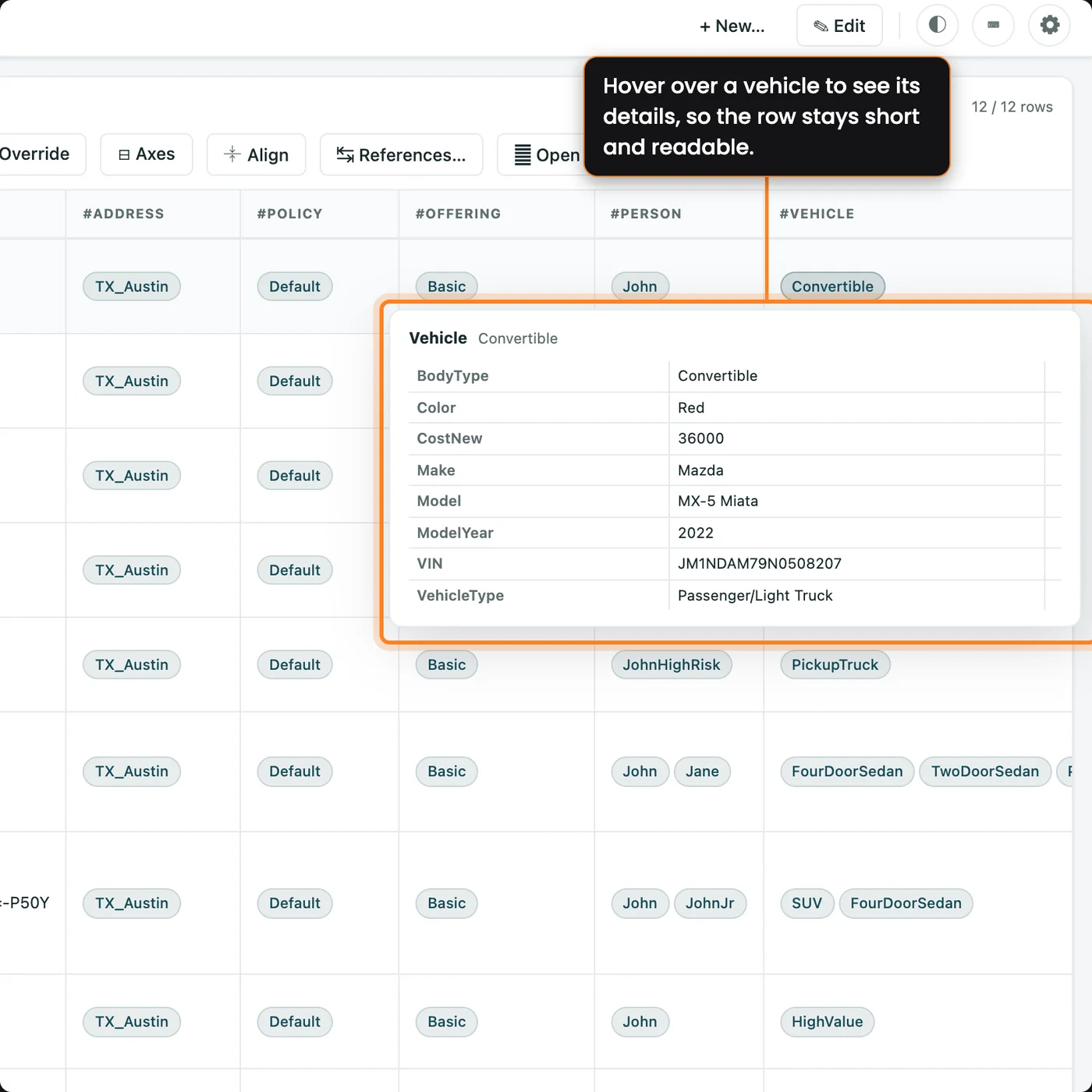
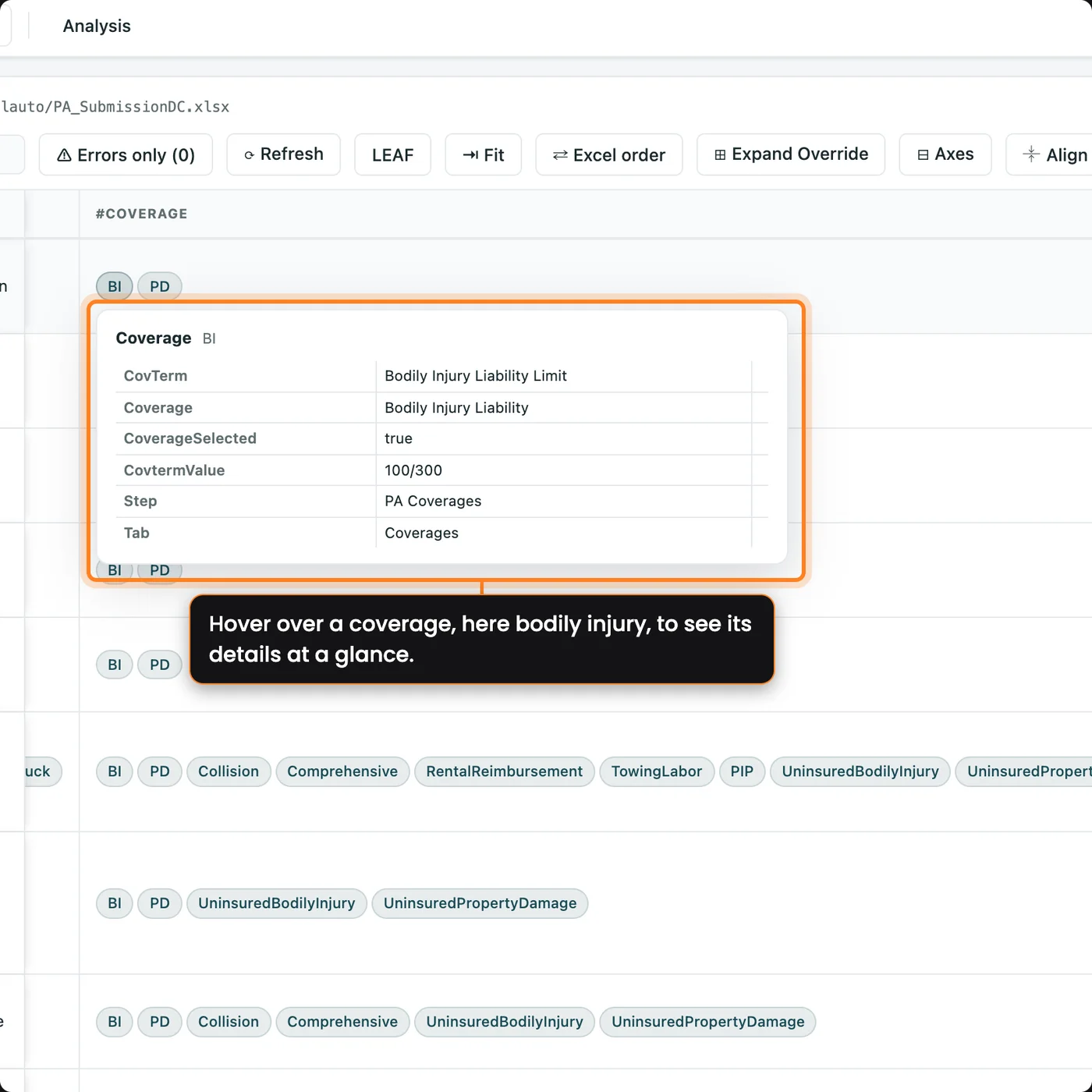
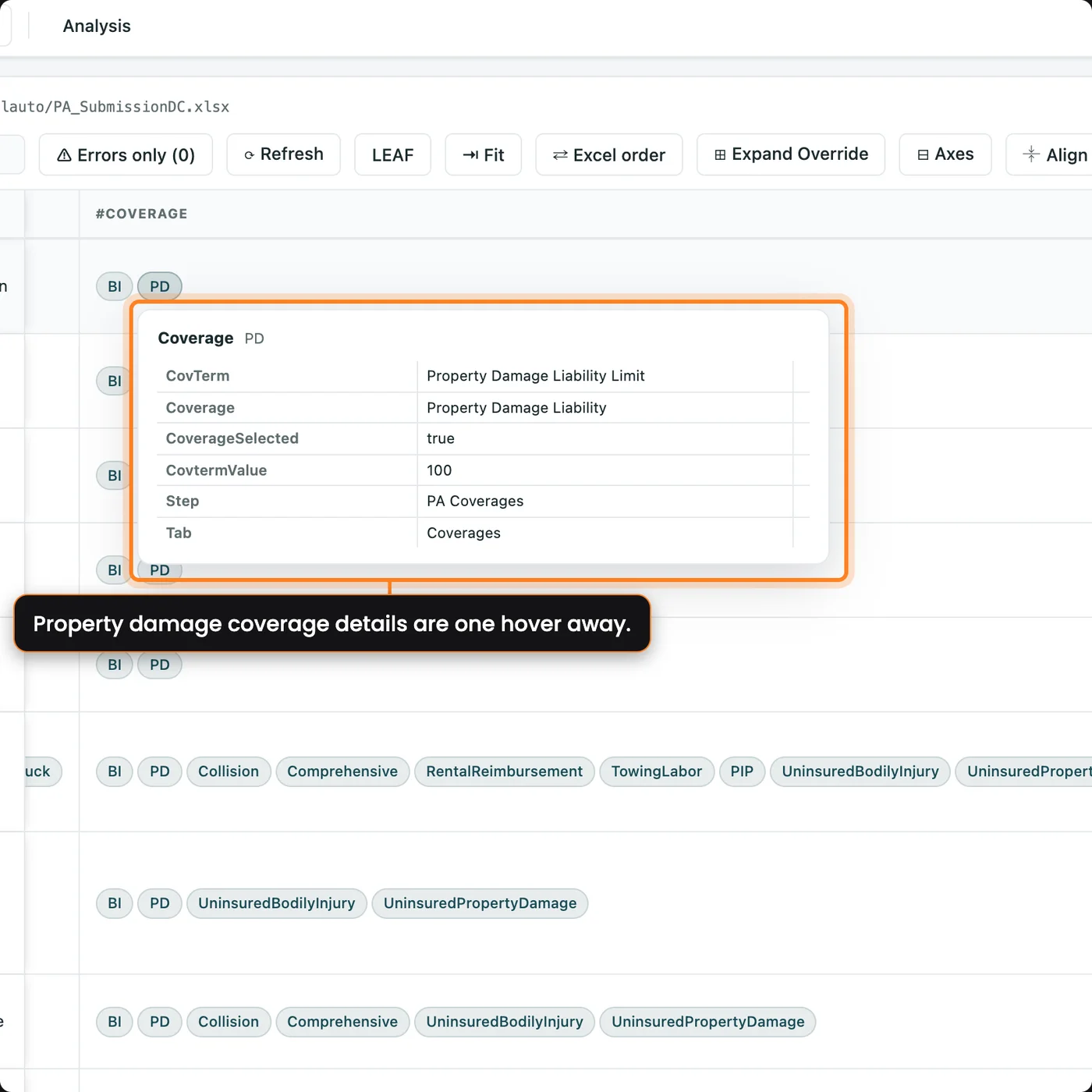
Read any row without leaving it: hover over a shared object to see the values behind its name.

Each row in CenterTest Data Studio reads as a set of names: a person, a vehicle, a coverage, an address. Hover over one and a card shows its main fields, such as John's date of birth and license date.

The grid stays short and readable, and the detail is there when you need it.

A hover card in CenterTest Data Studio showing the fields of one shared object.
The hover card for the Convertible vehicle object, listing its fields.
The hover card for the BI coverage object, listing its fields.
The hover card for the PD coverage object, listing its fields.
A hover card in CenterTest Data Studio showing the fields of one shared object.

Edit Right
in the Grid

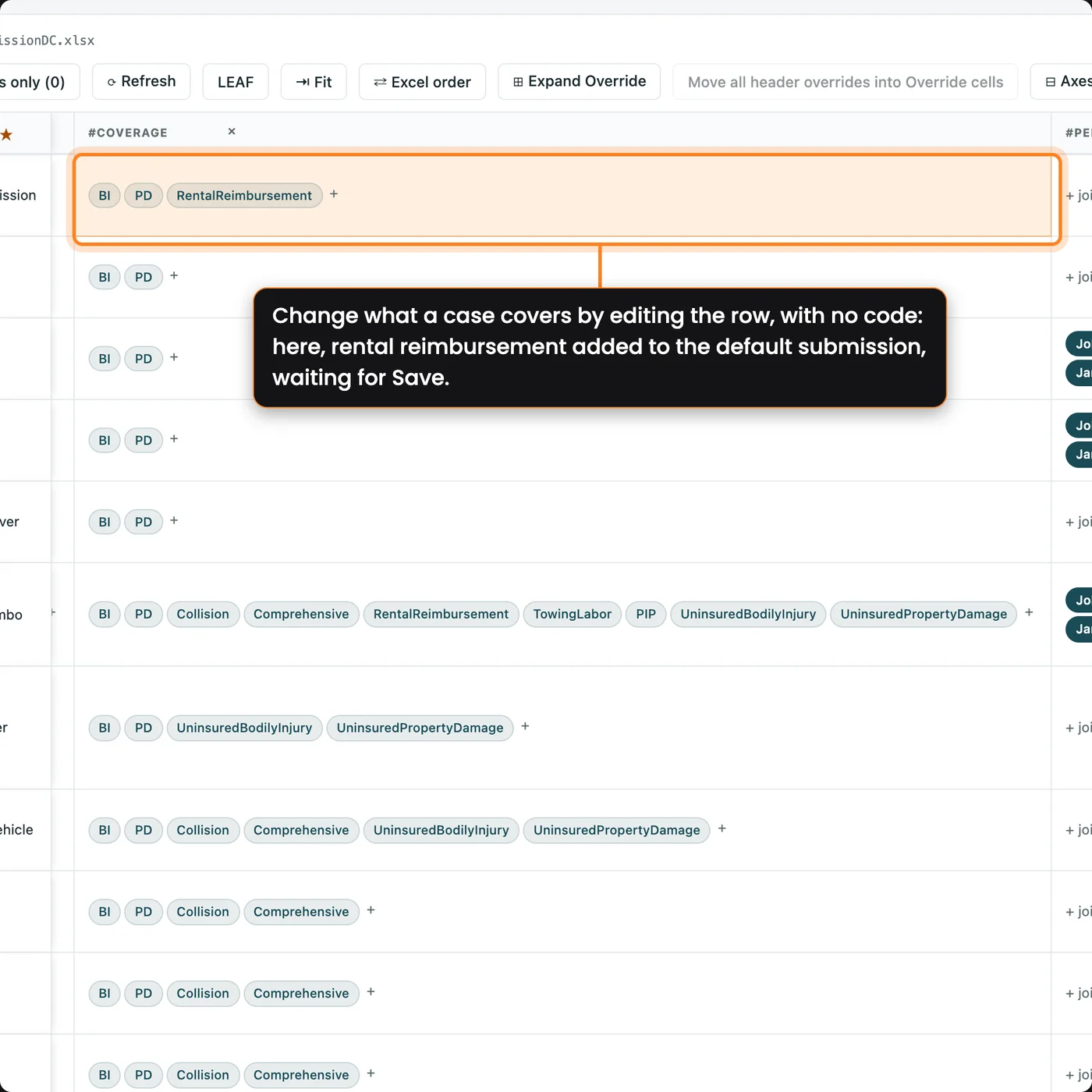
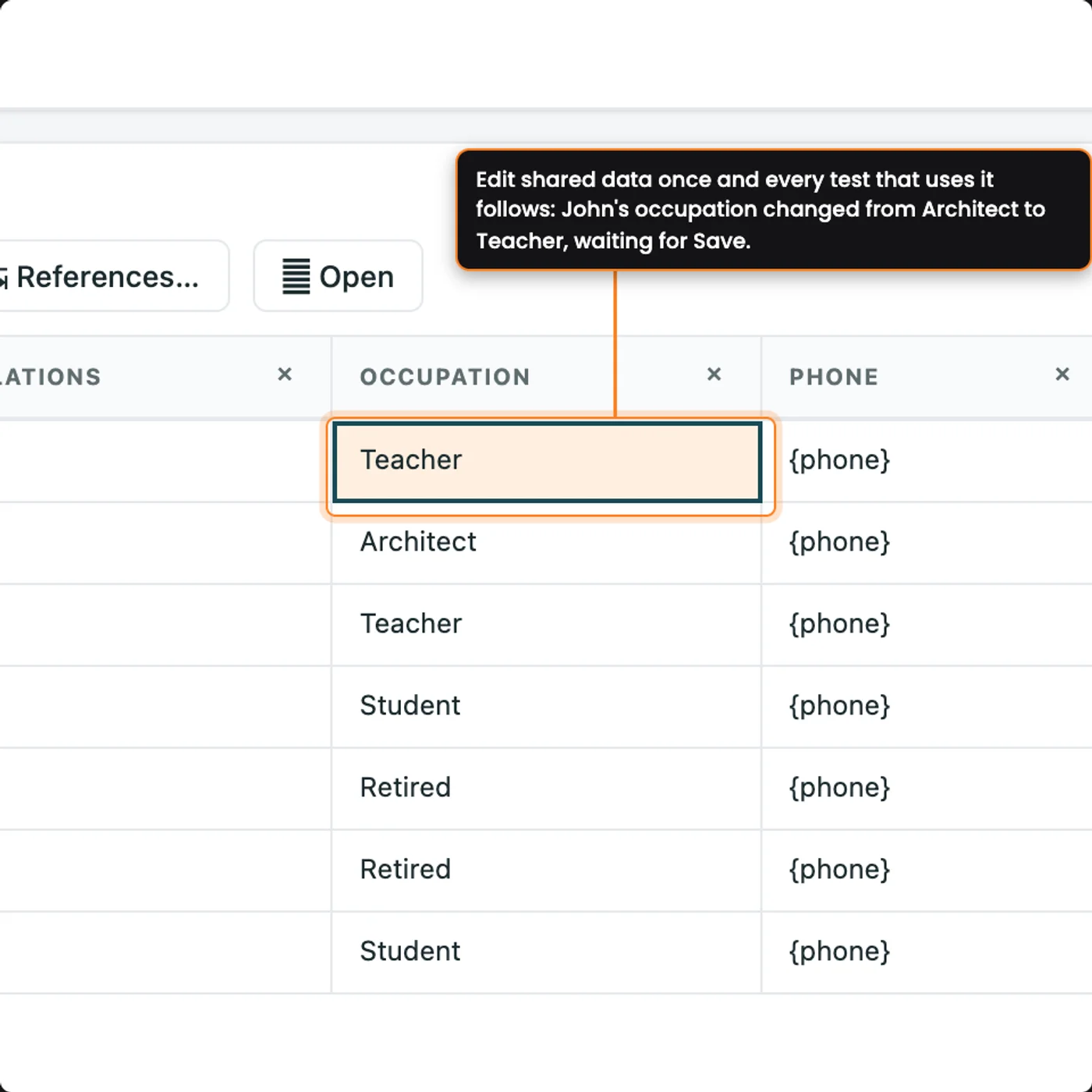
Edit mode in CenterTest Data Studio: rental reimbursement added to the default submission's coverages, and John's occupation changed on the shared Person sheet, both waiting for Save.
Edit shared data once and every test that uses it follows: John's occupation changed from Architect to Teacher, waiting for Save.

Edit Right
in the Grid

Changing what a case covers is a spreadsheet edit in CenterTest Data Studio, with no code to touch.

Say the default submission needs rental reimbursement. In edit mode, add the coverage to that row's coverage cell, and the case now covers it. Edit a shared record the same way: change John's occupation on the Person sheet once, and every test that uses John picks it up.

Every change waits until you press Save, so you can review your edits before anything is written to the workbook.

Edit mode in CenterTest Data Studio: rental reimbursement added to the default submission's coverages, and John's occupation changed on the shared Person sheet, both waiting for Save.

See the Values
Before the Run

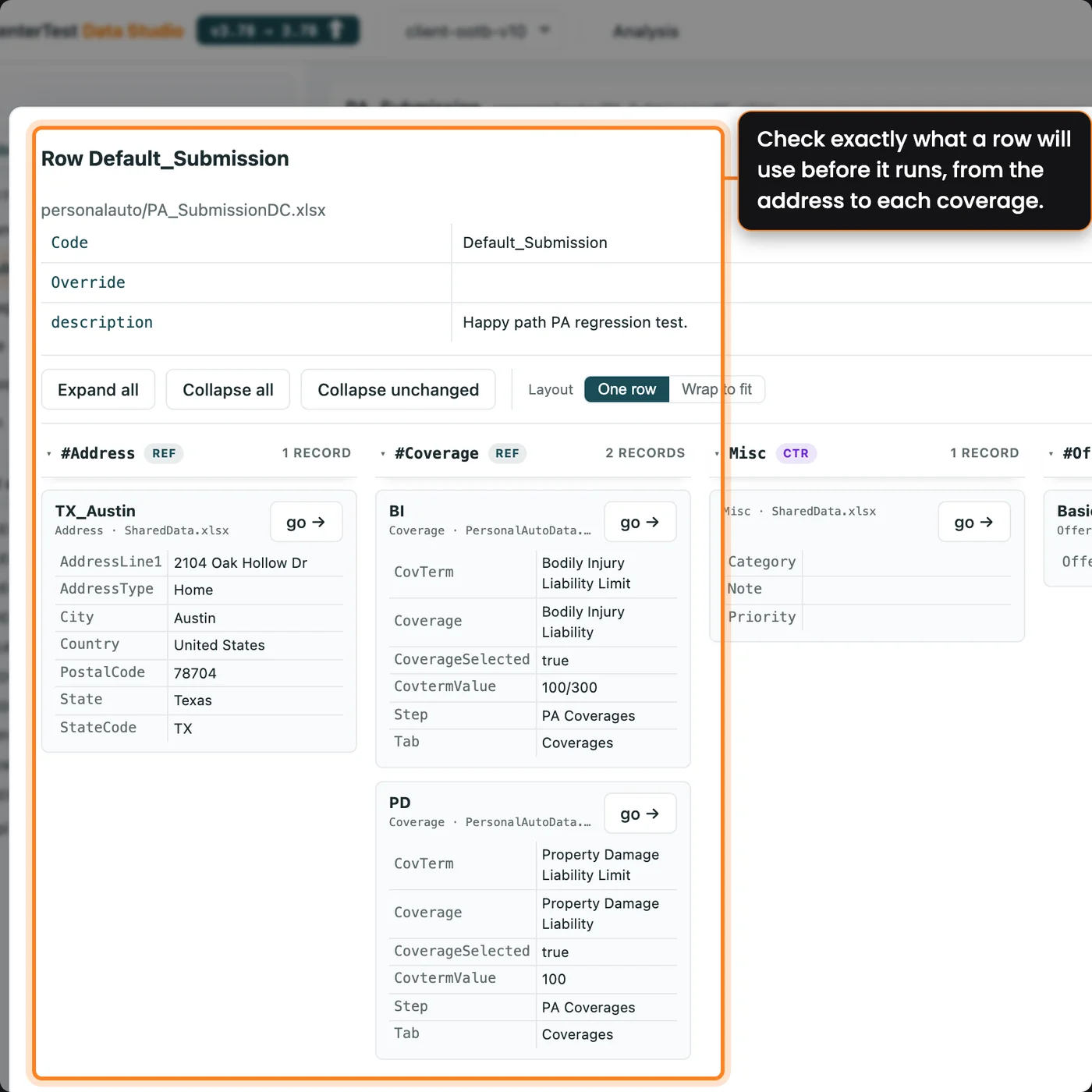
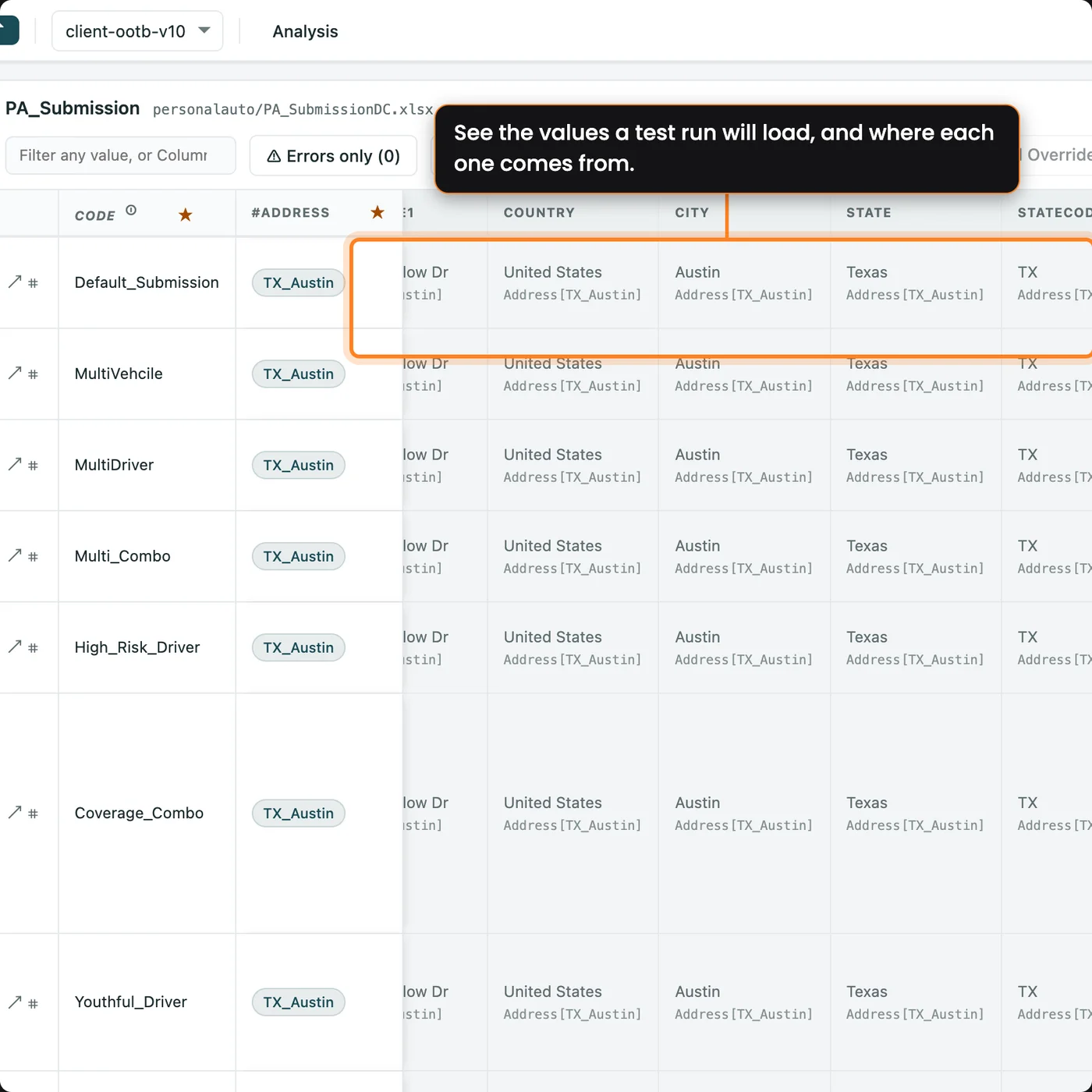
Before anything runs, open any row and see the values a test run will actually load, and where each one comes from.

A row is mostly names: an insured, an address, a set of coverages. CenterTest Data Studio follows each name through the reference sheets, including references inside references, and shows the values a test run will load.

Testers and business analysts can check those values before anything runs, without tracing references across workbooks by hand.

The CenterTest Data Studio row inspector for one row, with each reference expanded to its values, then the grid showing each value beside the shared object it comes from.
The RESOLVED view of PA_Submission, with each reference expanded into its values and the source object named under each.
The CenterTest Data Studio row inspector for one row, with each reference expanded to its values, then the grid showing each value beside the shared object it comes from.

Change One Case,
Leave the Rest

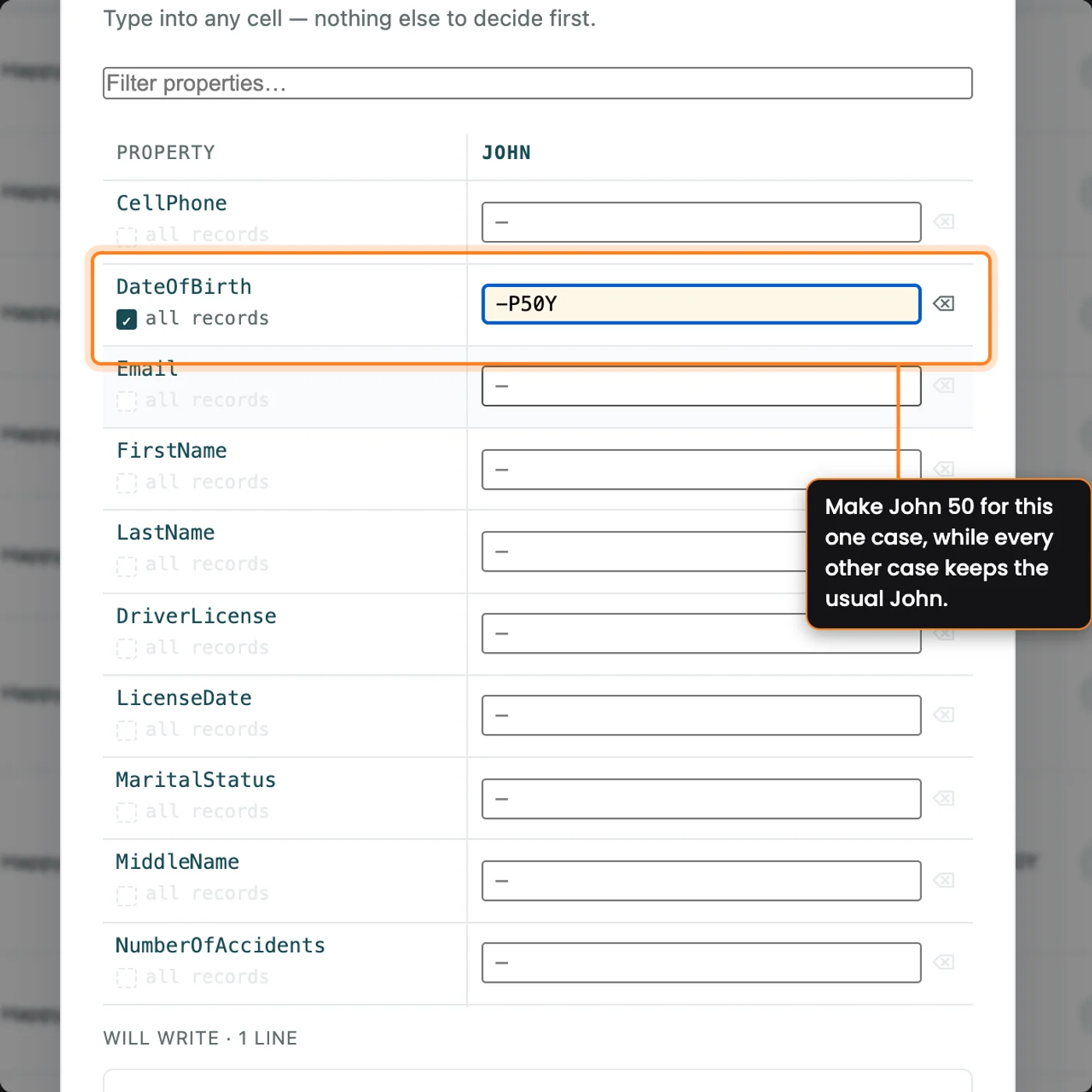
The CenterTest Data Studio override editor on one row, with John's date of birth overridden.
The override editor with DateOfBirth set to -P50Y for John.

Change One Case,
Leave the Rest

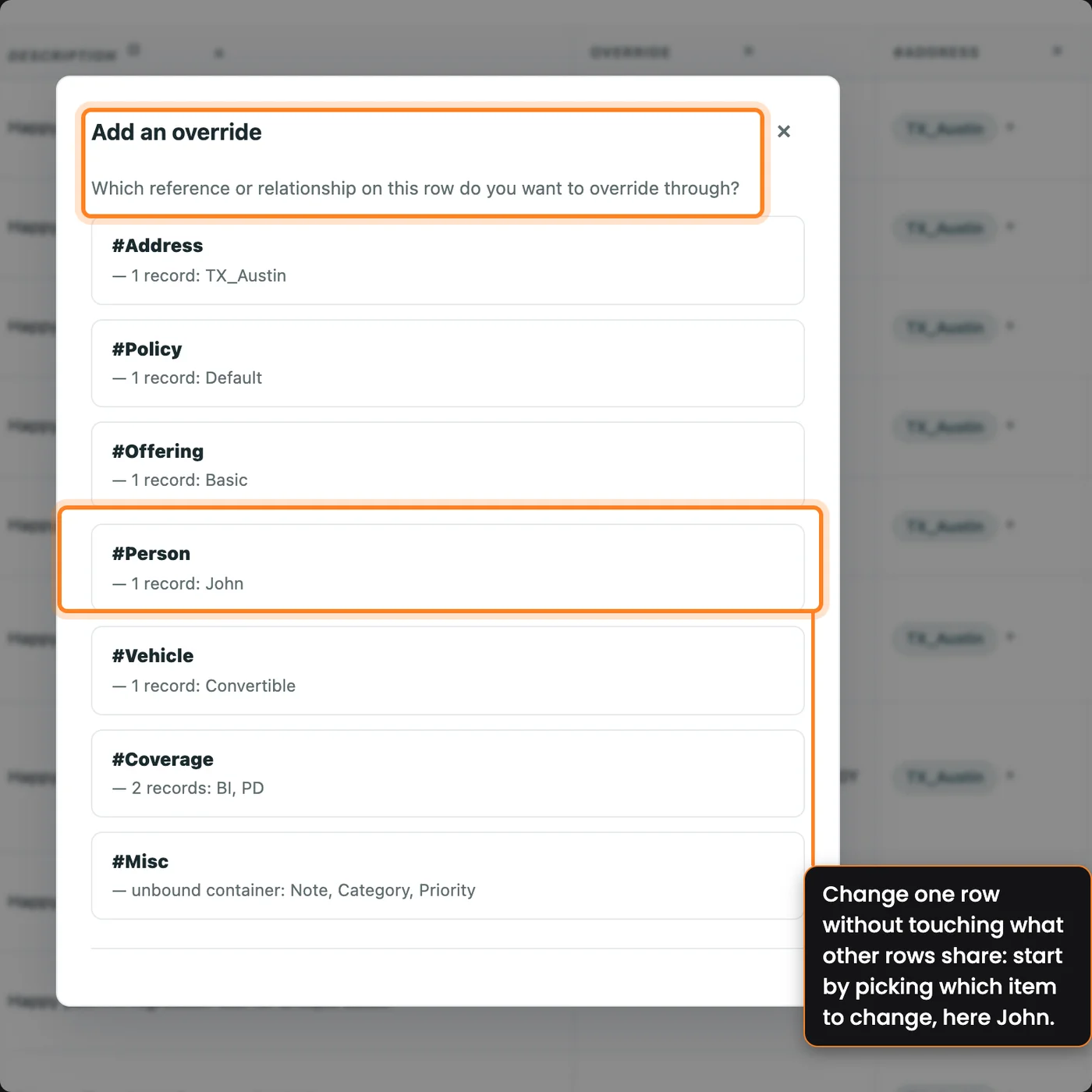
Cover edge cases without side effects: override any shared object on one row, and every other run keeps the shared version.

Build the policy from your default records, then click the object you want to change. Override John's date of birth, the payment plan, the property damage limit, the address, or the occupation for that case alone.

CenterTest Data Studio leaves the shared object as it is, so one edge case never changes what the rest of the suite uses.

The CenterTest Data Studio override editor on one row, with John's date of birth overridden.

Flexible Overrides,
High Visibility

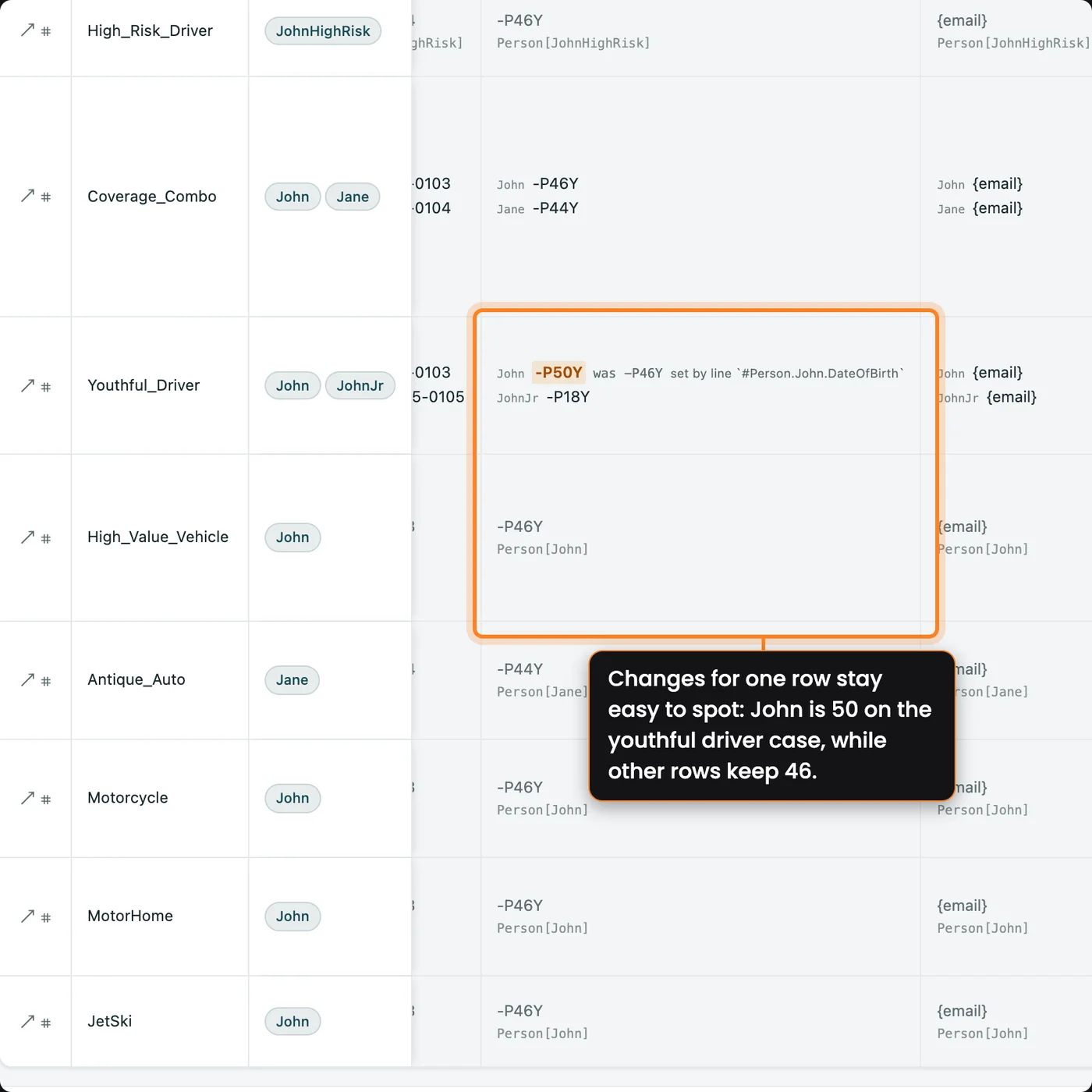
CenterTest Data Studio provides users multiple, intuitive UI options to both see and add overrides, based on what makes sense for how you work.

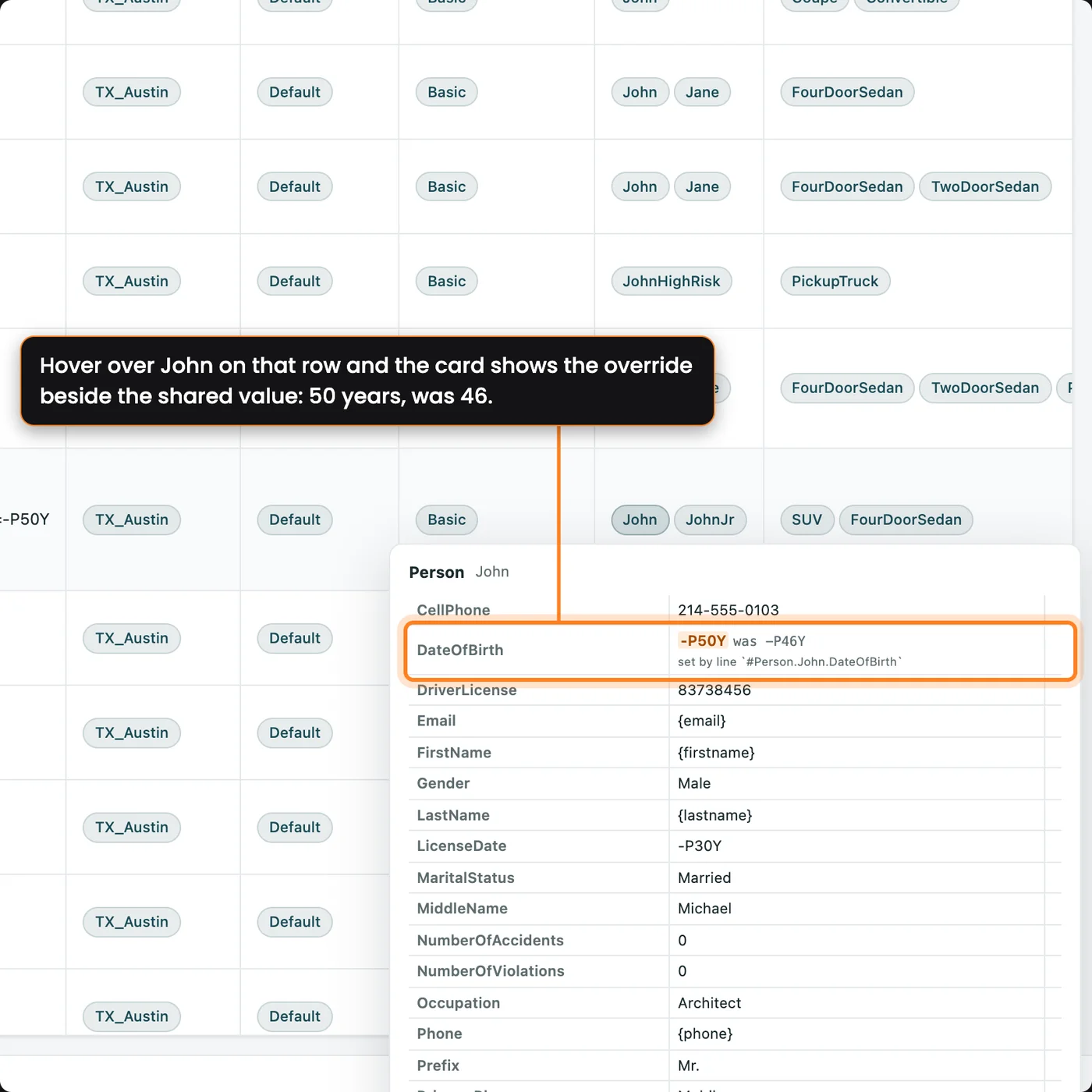
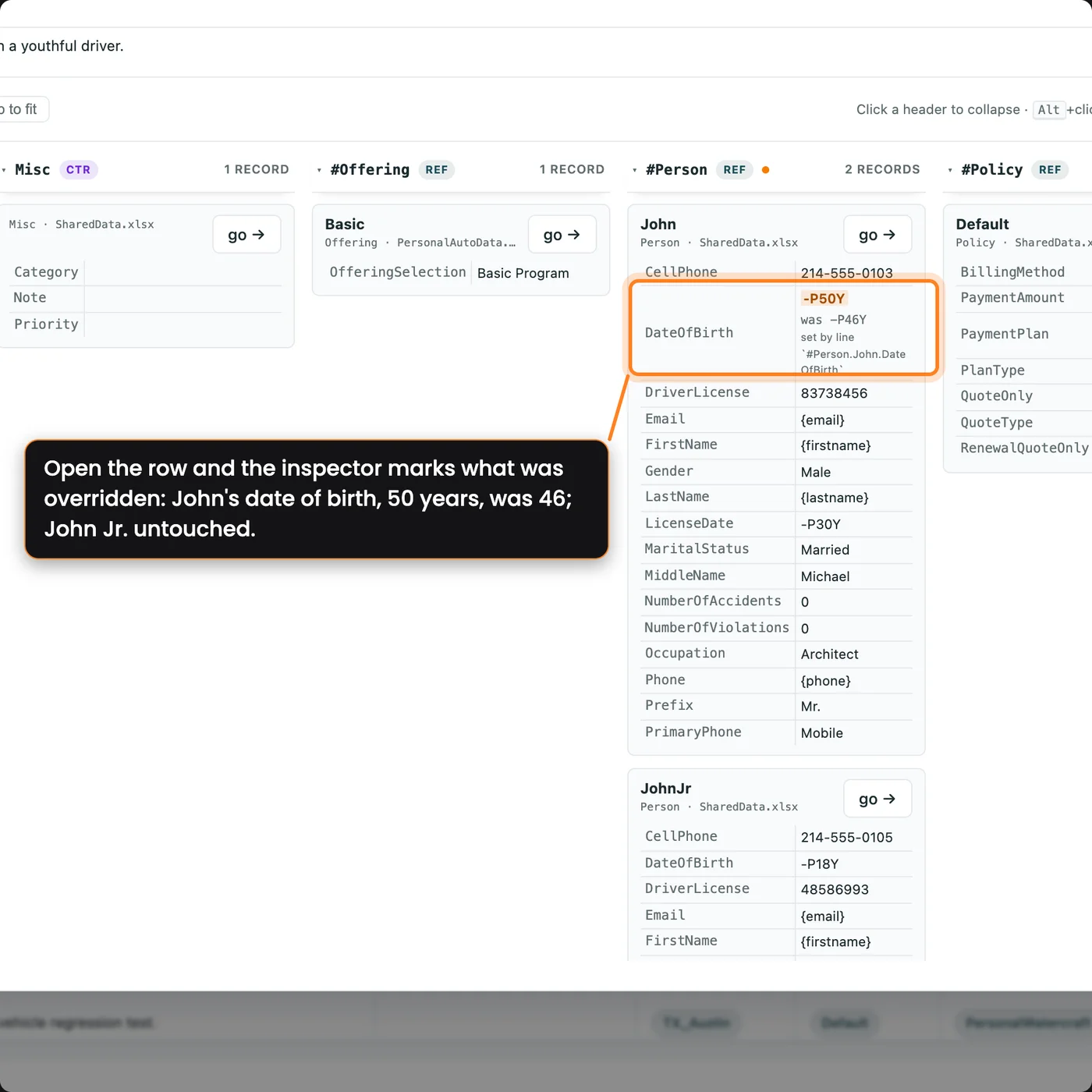
Every override then shows wherever the row does: in its cell or column, highlighted beside the shared value it replaced in the grid, the hover card, and the row inspector, in the unsaved changes list before you save, and in the rename dialog, so renaming a code keeps its overrides.

Swipe set in CenterTest Data Studio: John's date of birth overridden to -P50Y on one row, shown beside the shared -P46Y in the grid, the hover card, and the row inspector; override columns on the cancellation sheet (P60D, Vehicle Sold); the Add an override dialog setting John's occupation to Pilot while John Jr. stays untouched; and the unsaved changes list before Save.
Hover over John on that row and the card shows the override beside the shared value: 50 years, was 46.
Open the row and the inspector marks what was overridden: John's date of birth, 50 years, was 46; John Jr. untouched.
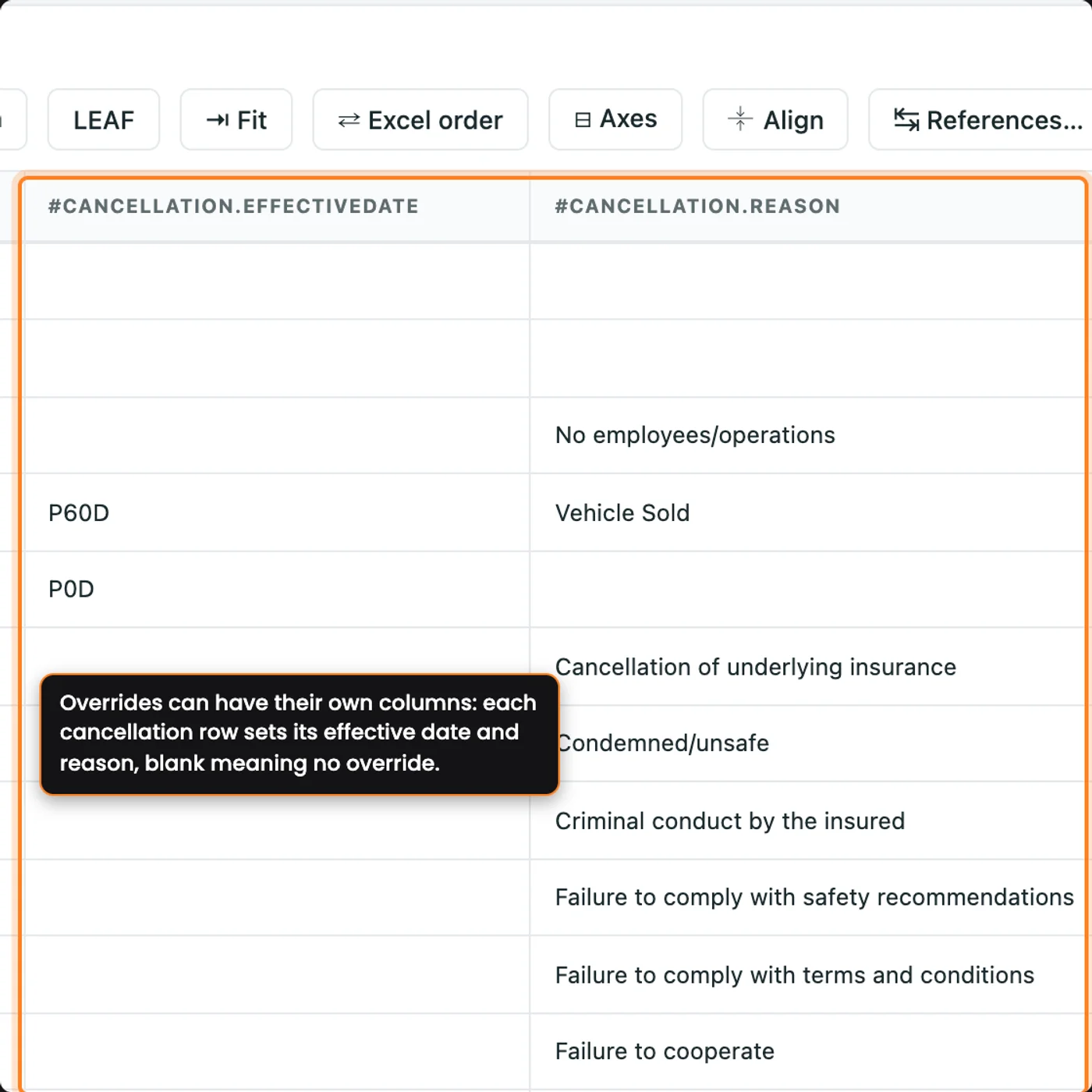
Overrides can have their own columns: each cancellation row sets its effective date and reason, blank meaning no override.
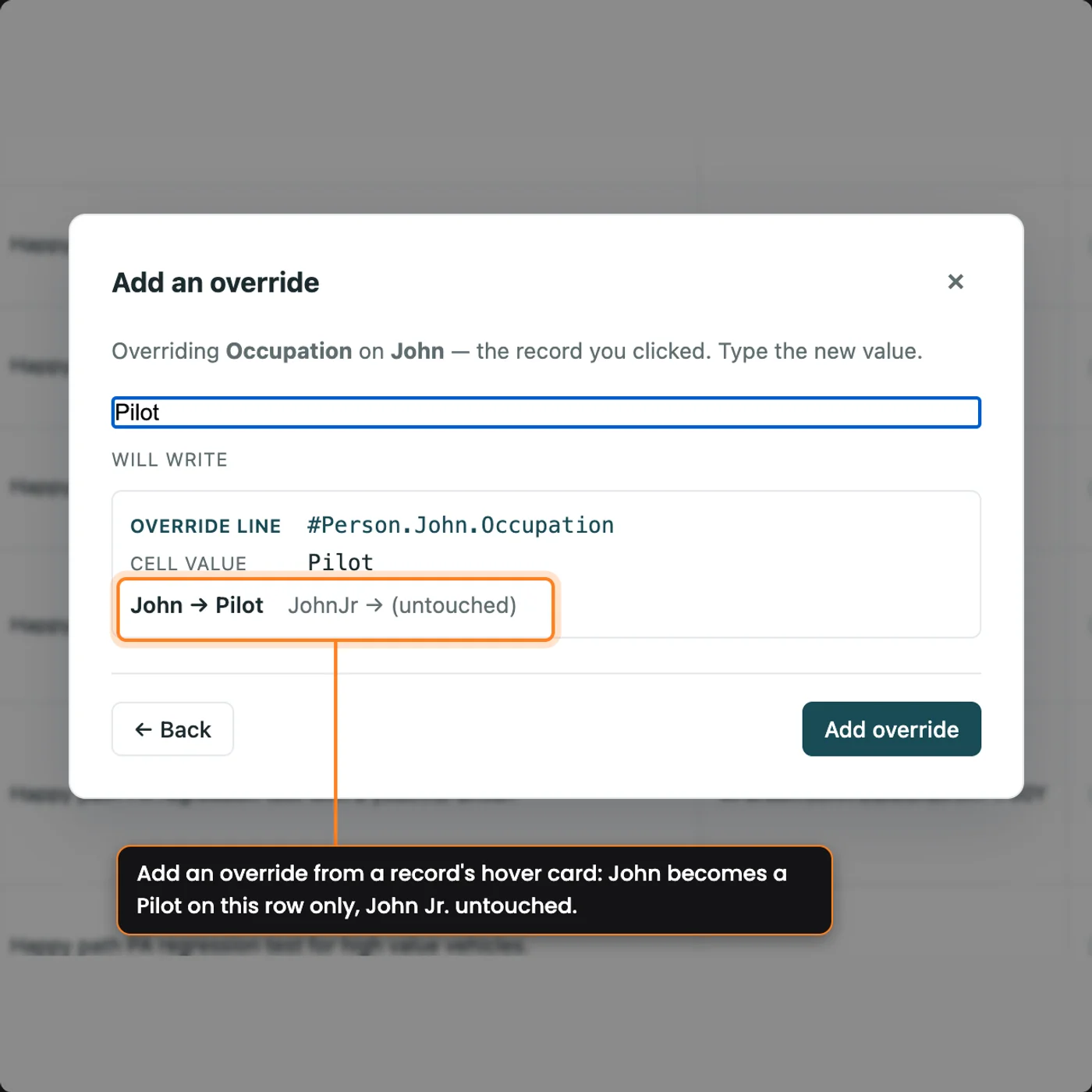
Add an override from a record's hover card: John becomes a Pilot on this row only, John Jr. untouched.
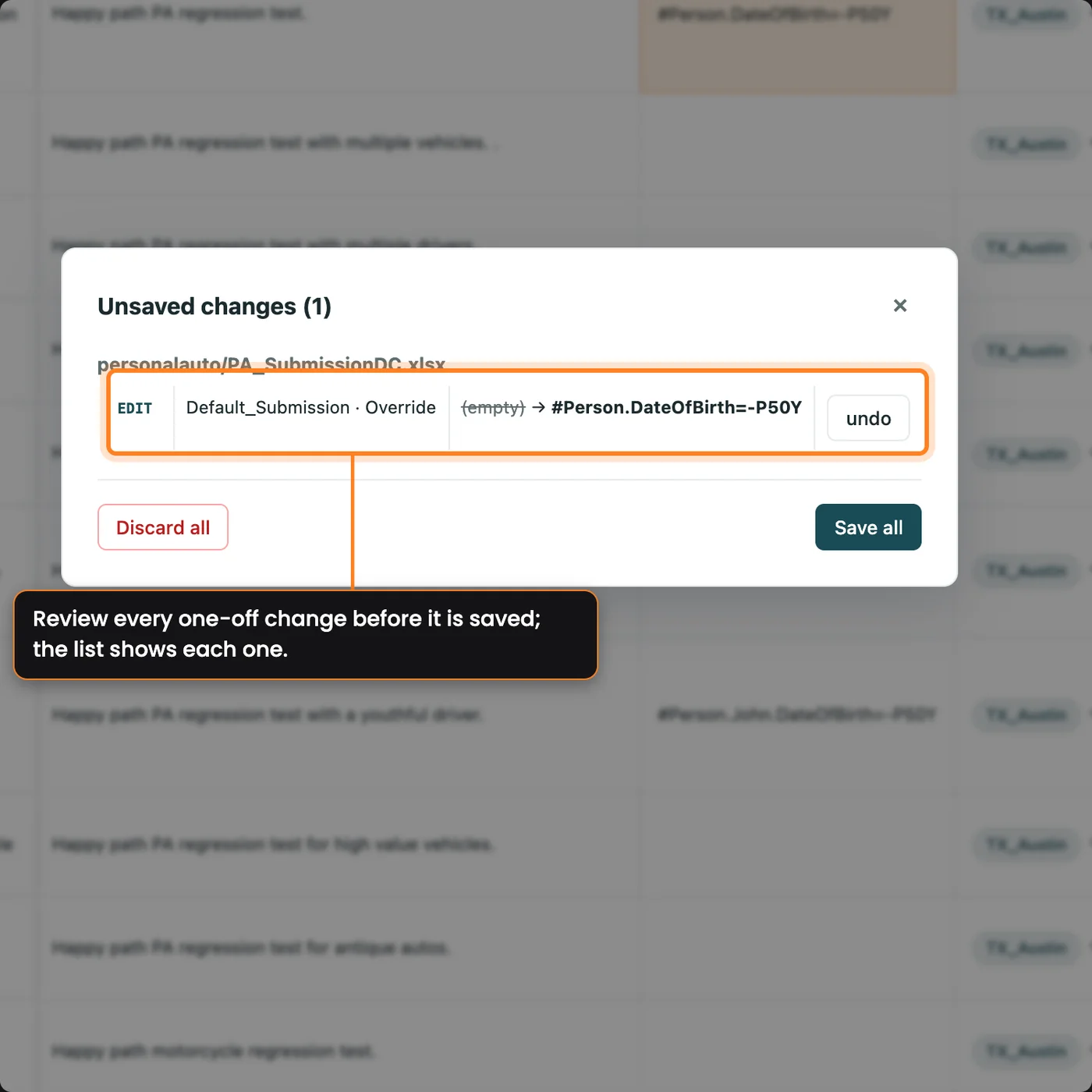
The unsaved changes dialog listing the date-of-birth override.
Swipe set in CenterTest Data Studio: John's date of birth overridden to -P50Y on one row, shown beside the shared -P46Y in the grid, the hover card, and the row inspector; override columns on the cancellation sheet (P60D, Vehicle Sold); the Add an override dialog setting John's occupation to Pilot while John Jr. stays untouched; and the unsaved changes list before Save.

Flows Build
on a Submission

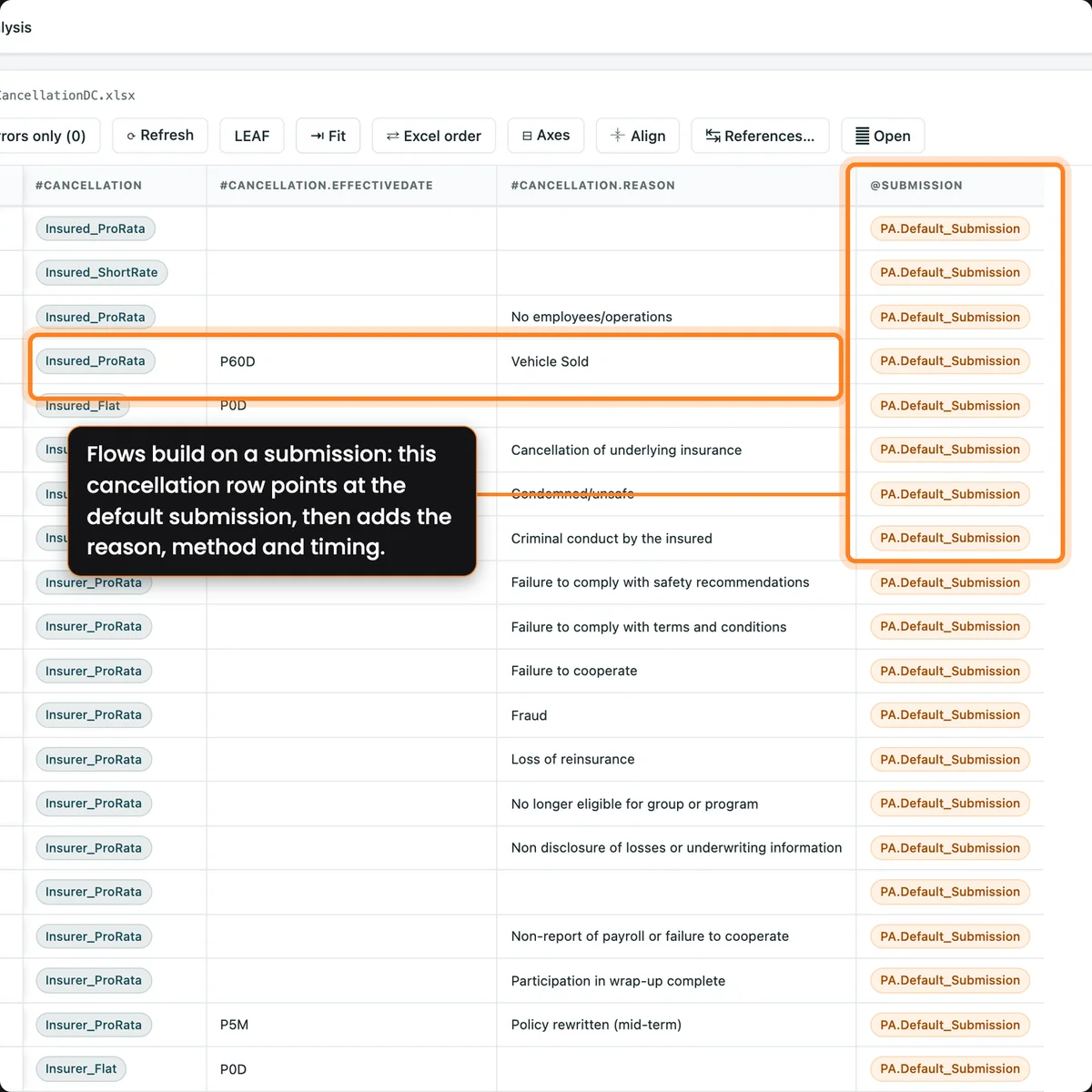
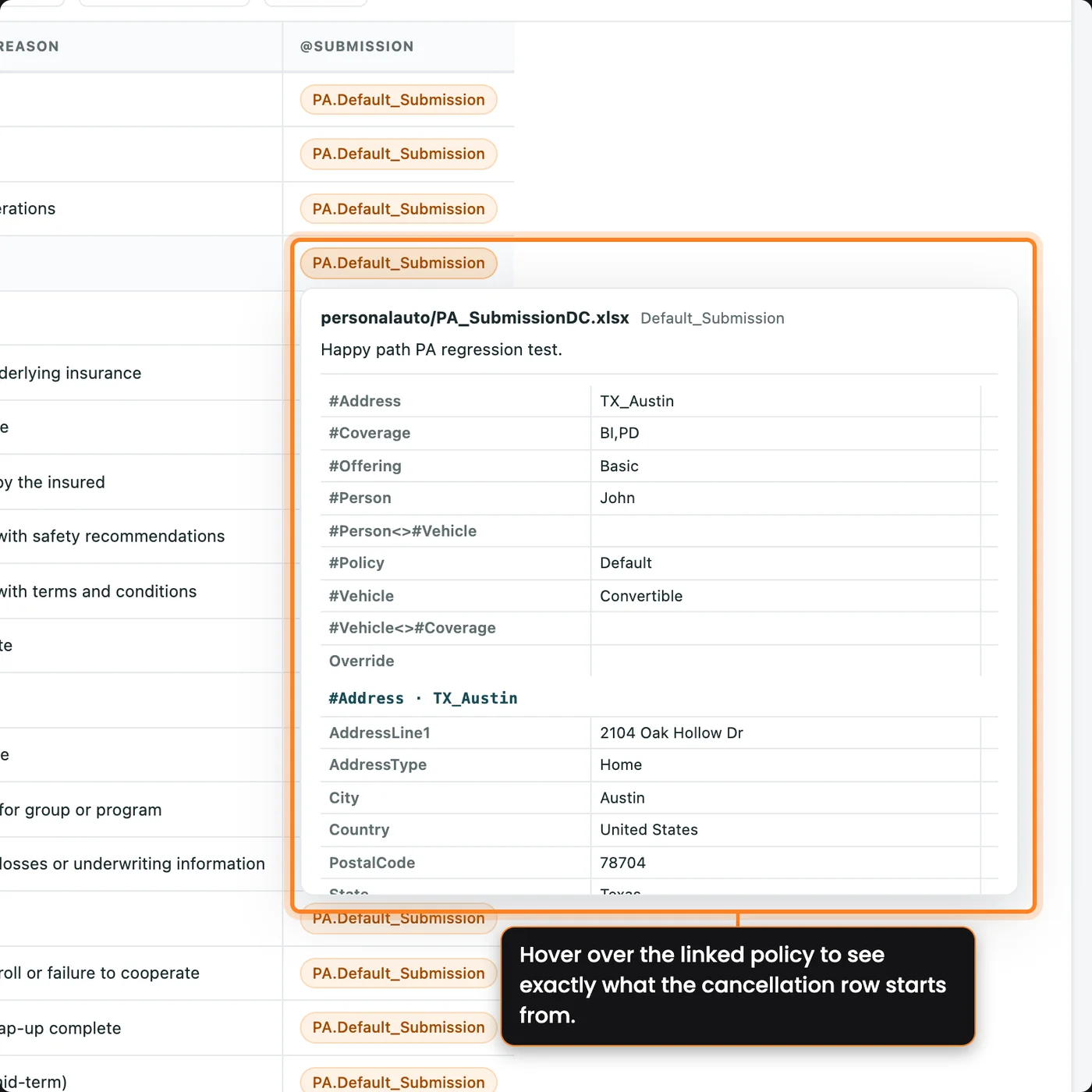
Personal auto cancellation rows in CenterTest Data Studio referencing the default personal auto submission, with cancellation reason sold, pro rata method, and 60-day timing.
The hover card of the referenced default submission on the ProRata_Sold row.
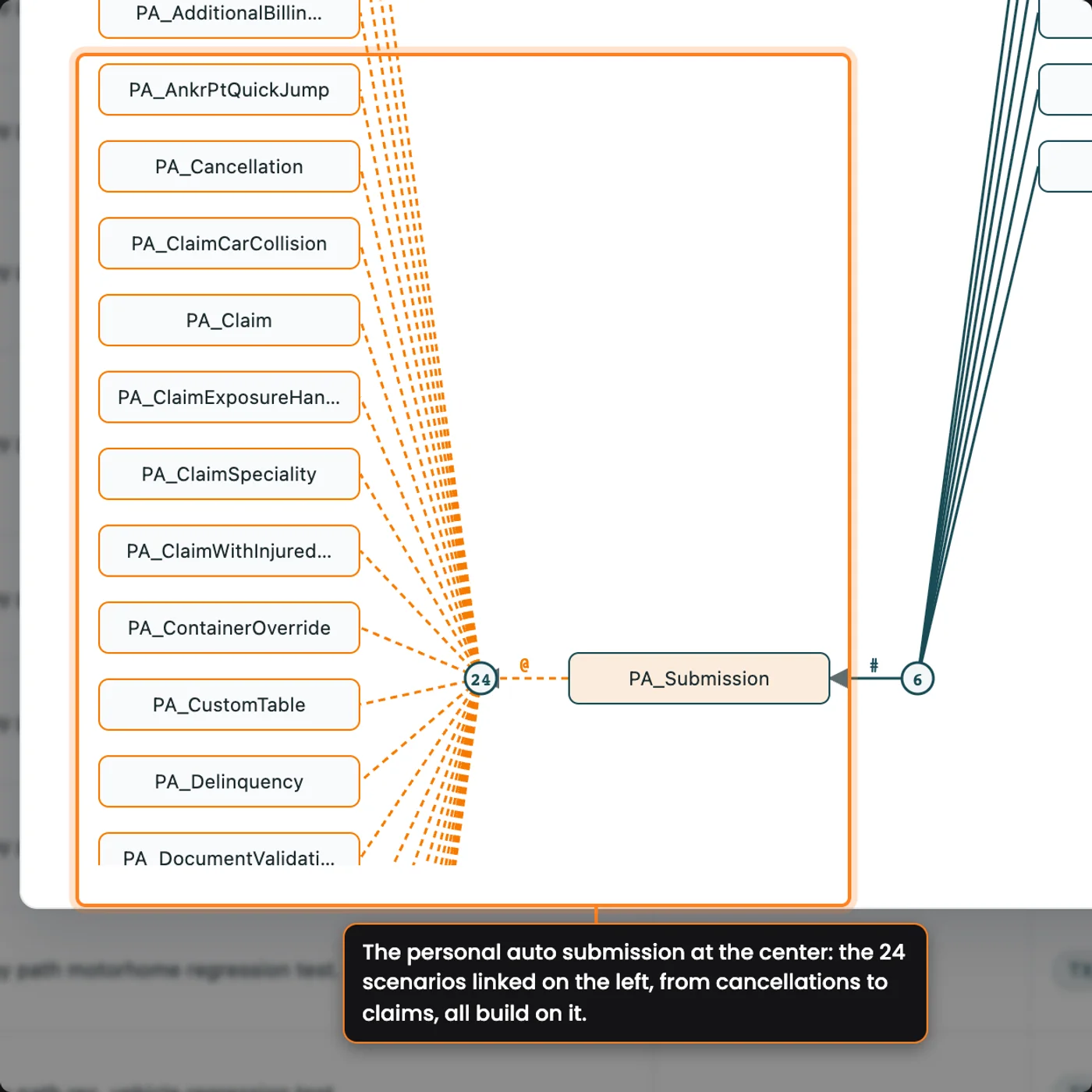
The personal auto submission at the center of the reference graph in CenterTest Data Studio, with the 24 scenario sheets that build on it linked on the left.

Flows Build
on a Submission

Build the policy once. The submission sits at the top of a pyramid, and every later flow, from cancellation to reinstatement, renewal, and rewrite, builds on the one before it.

Cancellation is the example. Each row in the cancellation sheet names a submission, such as the default personal auto submission, then the cancellation reason, method, and timing: vehicle sold, pro rata, 60 days after the policy effective date, with no need to rebuild the policy.

Payments or claims can come in at any step. Nearly every PolicyCenter scenario in the sidebar is driven by a submission, so once you know the records and how they relate, adding conditions scales quickly.


Personal auto cancellation rows in CenterTest Data Studio referencing the default personal auto submission, with cancellation reason sold, pro rata method, and 60-day timing.

Rename Once,
Updated Everywhere

Give a shared object a clearer name without hunting through workbooks for every row that uses it.

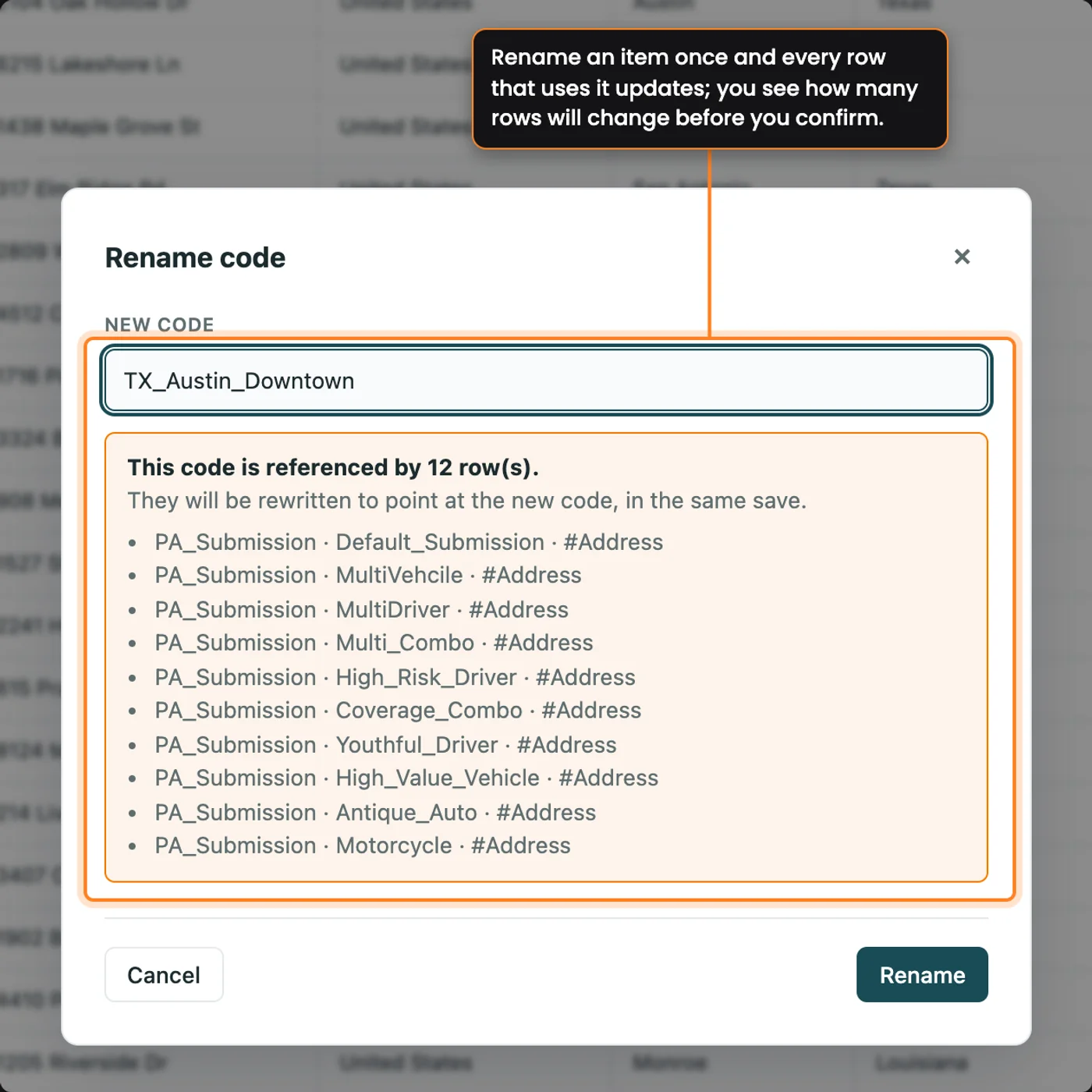
Names like John or Austin are how your team reads each case. When a name needs to change, CenterTest Data Studio renames the code and updates every reference to it, including overrides that name it.

Before you rename, look up everywhere the code is used, so you know exactly which rows the change will reach.

A code rename in CenterTest Data Studio, showing the new name and the list of places that change.

Recent News

Explore CenterTest

CenterTest Generators

Automatically generate test framework assets directly from Guidewire source code. Your tests stay synchronized with your configuration.

Restart Points

Resume failed or suspended scenarios from clearly identified Restart Points to eliminate false failures and optimize test suite execution time.

Role & Session Management

Optimize execution through intelligent session management, and test realistic workflows where multiple users interact with the same transaction.

Time Travel

Automate date-sensitive workflows like renewals, delinquencies, and claims processing. Hassle-free testing of complete policy lifecycles.

Data-Driven Testing

One scenario, hundreds of test variations. Simplify maintenance and scale coverage through data – without duplicating test code.

Document Testing

Automatically validate document generation and verify document content for policy documents, invoices, or claims correspondence.

CenterTest Data Studio

Let analysts own the test data. Business and test analysts change CenterTest test data without development knowledge, on their own machine.

CenterTest Recorder

Record once. Everyone benefits. An analyst walks through the process once in PolicyCenter, BillingCenter or ClaimCenter, and the team gets a video, written steps, the clicks and the checks.

Frequently Asked Questions

Understanding CenterTest

Browse all questions

Ready to elevate your QA practice?

Guidewire test automation,

without the headaches.

that's easy to maintain.

in just two weeks.

future-proofed for cloud.

  • Guidewire test automation, that's easy to maintain.
  • Guidewire test automation, in just two weeks.
  • Guidewire test automation, future-proofed for cloud.
Get Started